Turn Multi-view Images into 3D Model for Free
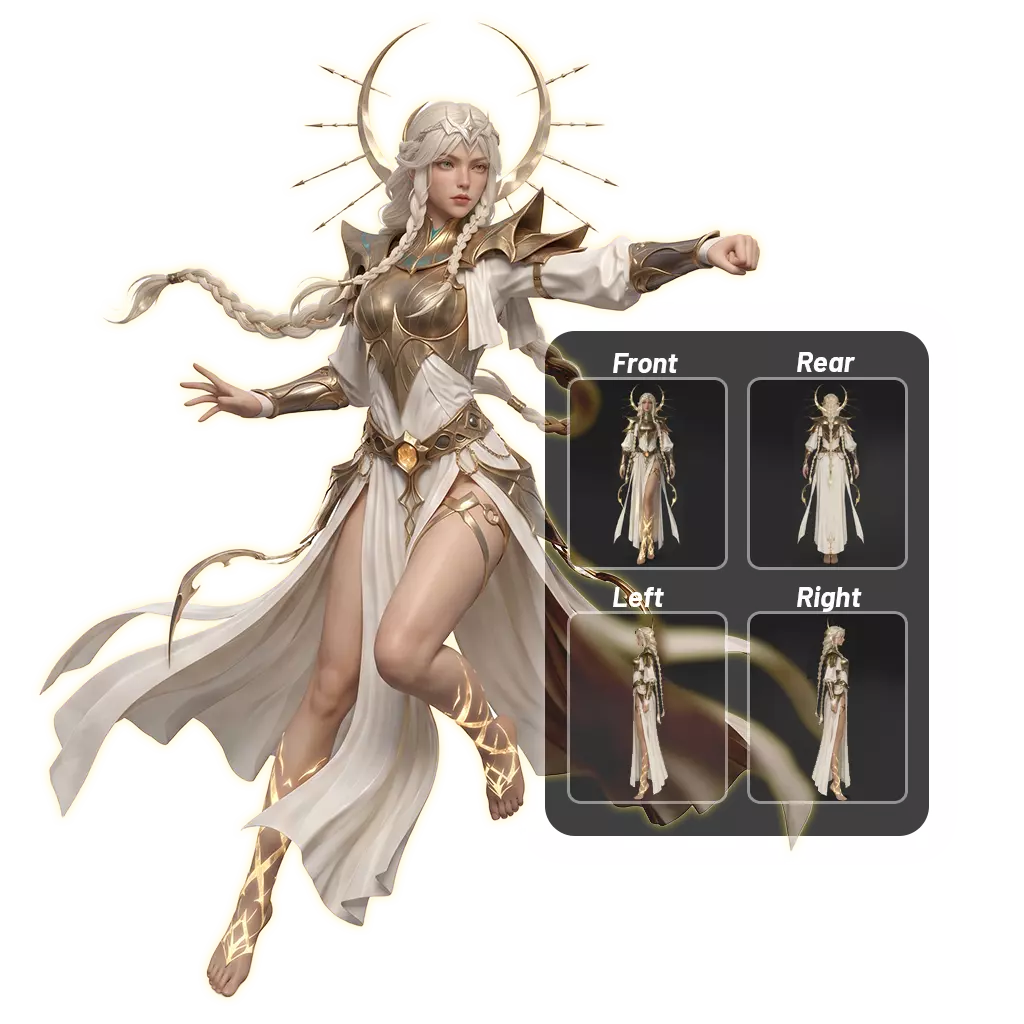
Bring every angle of your object together in one 3D model. Add multiple views to capture its shape, structure, and details with greater visual consistency.
DEMO
Explore Multi-view to 3D Model Reconstruction
Enhance image to 3D model results with multiple views for more complete geometry and detail.
Advantages
Why Choose Us for Multi-view 3D Reconstruction?
Give AI more visual information to create 3D models with greater structural consistency, richer details, and better control over the final mesh
Free And Easy To Use
Generate multi-view image to 3d model without a subscription or upfront cost.
Complete Shape Reconstruction
Combine multiple perspectives to better capture the object’s form, depth, and overall structure.
Preserved Surface Details
Provide additional visual references to help retain important details across different sides of the object.
Multi-Angle Input
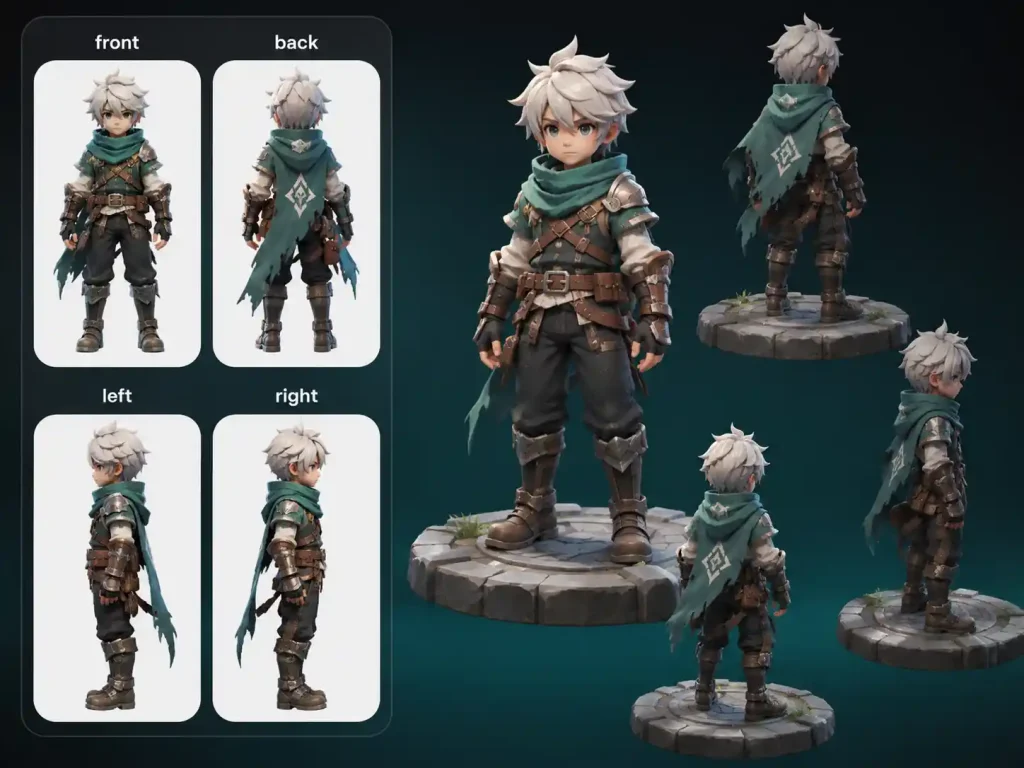
Upload front, back, left, and right views to provide a more complete visual reference.
Consistent Proportions
Use multiple views to maintain more consistent proportions throughout the generated model.
Adjustable Mesh Complexity
Fine-tune resolution, chunk count, and target face number to control the complexity of the generated mesh.
MULTIPLE VIEWS
Create a More Complete 3D Model from Multi-view Images
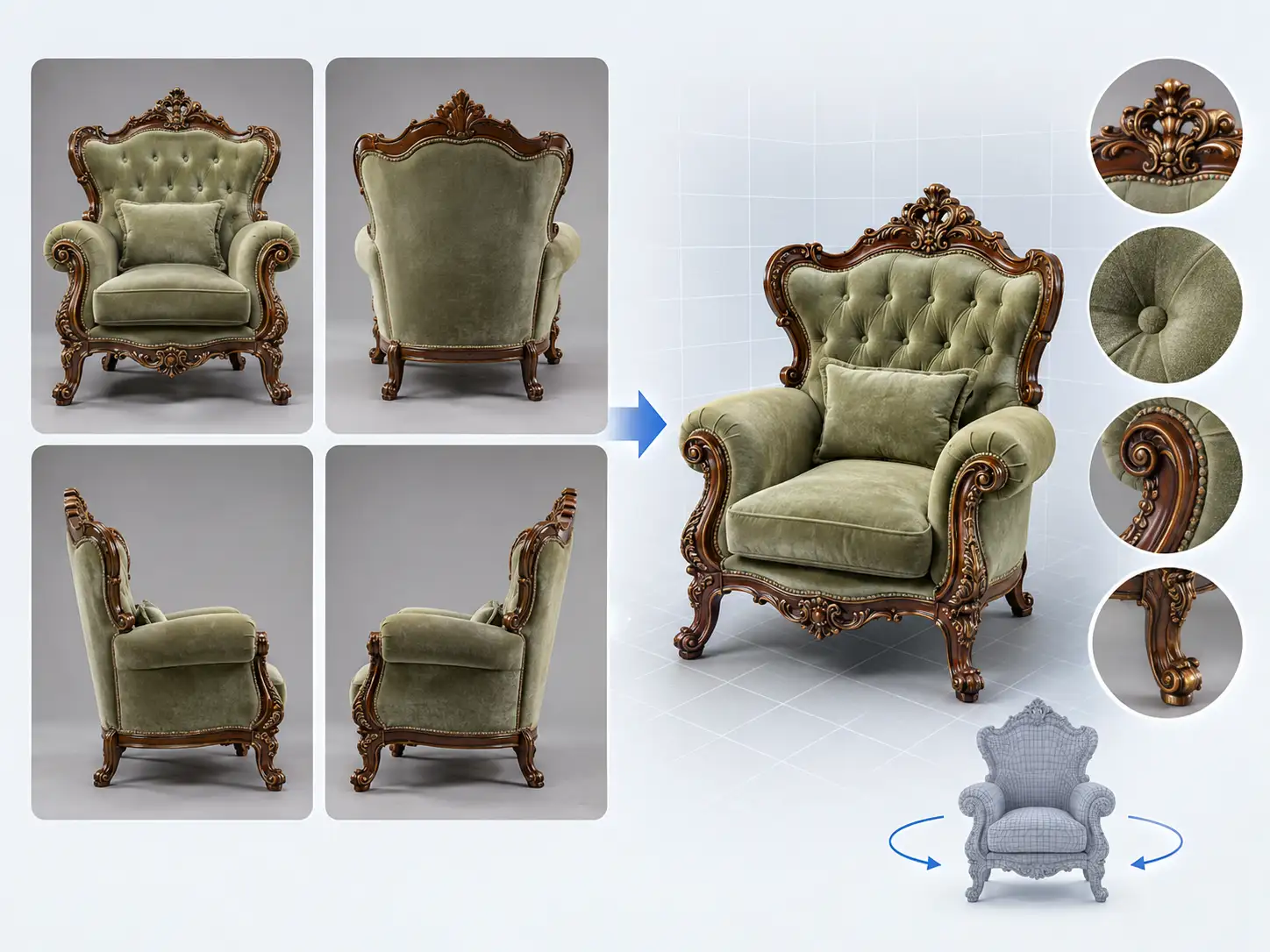
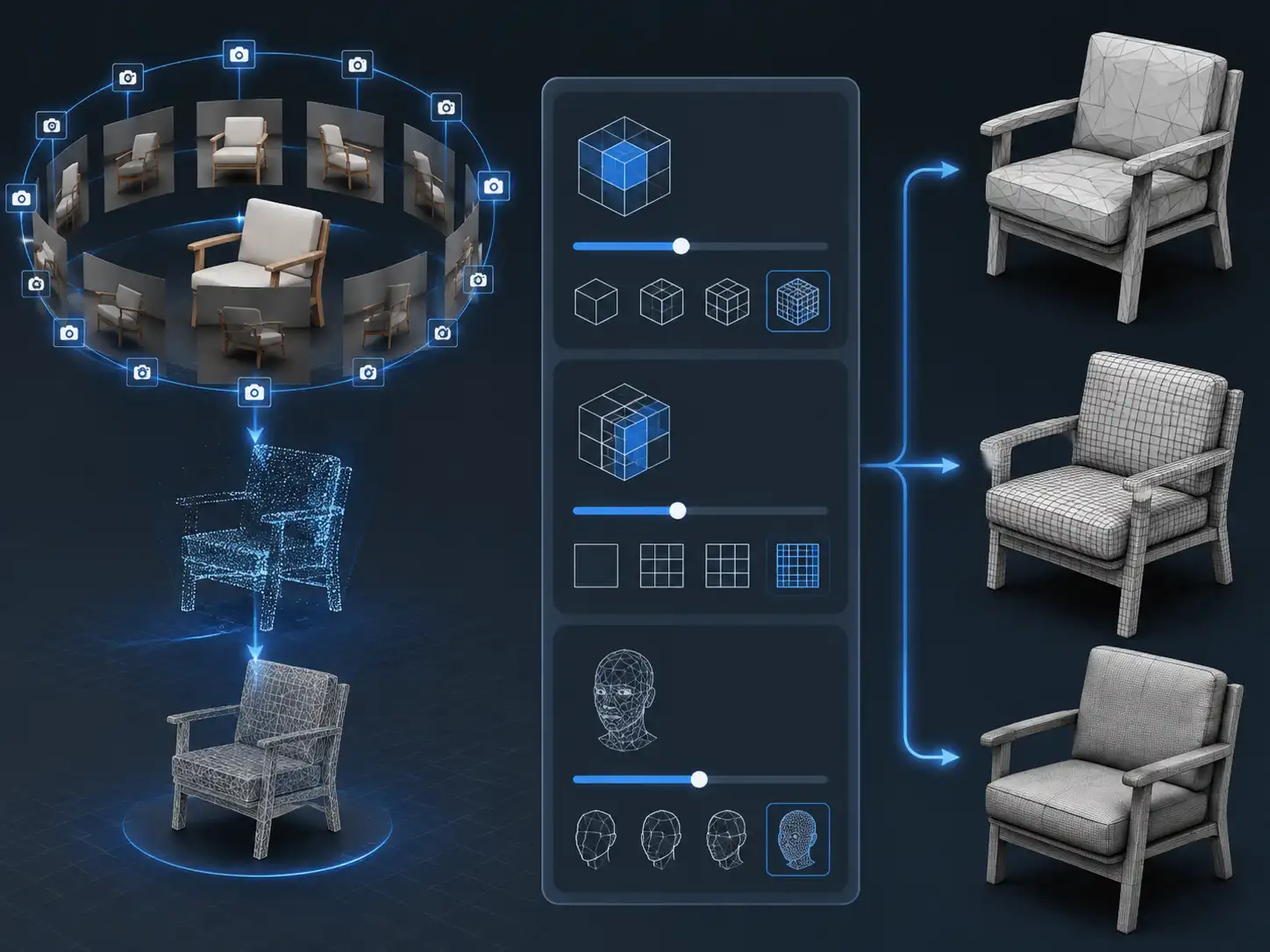
Combine a required front-view image with additional images from the back, side, or other angles to create a 3D model from multi-view images. This multi-view images to 3D model workflow gives the AI more visual information about the object's shape, structure, and surface details for a more complete reconstruction.
ADVANCED CONTROL
Fine-Tune Your Multi-View 3D Model with Advanced Options
Customize your multi-view to 3D reconstruction with Octree Resolution, Number of Chunks, and Target Face Num. These advanced options give you more control over processing detail, mesh density, and the overall complexity of your generated 3D model.
How to Use
How to Create a 3D Model from Multi-view Images
Upload multiple views of the same object to capture more details, reduce missing areas, and create a more complete 3D representation in just three simple steps.
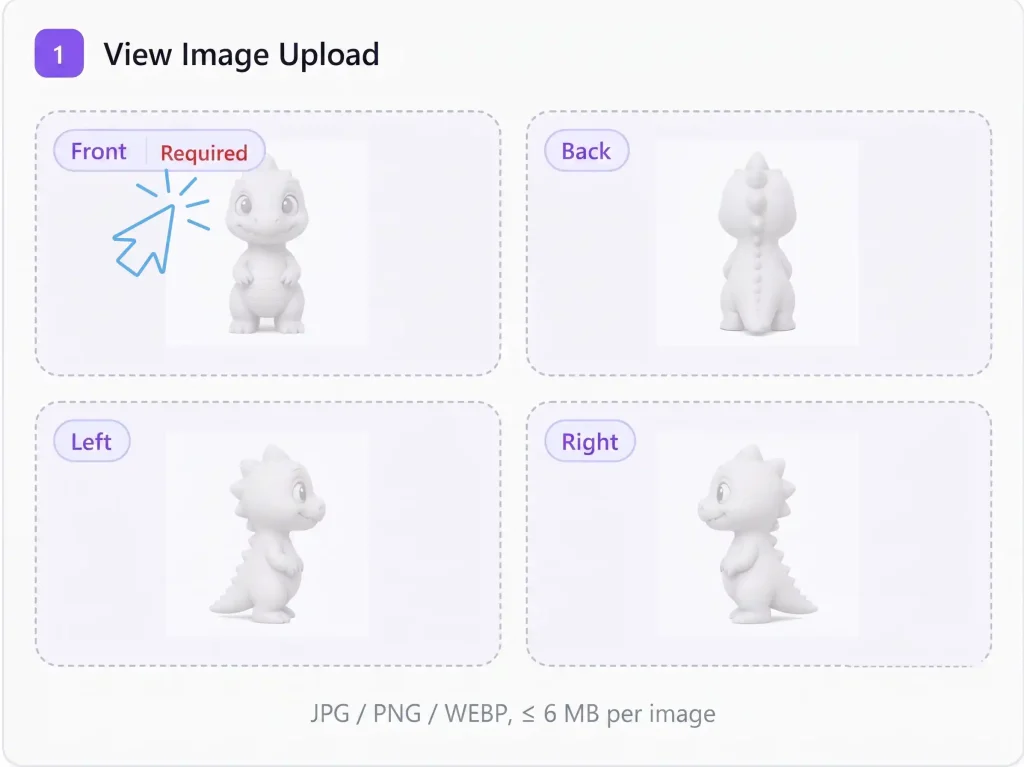
1. Upload Multi-view Images
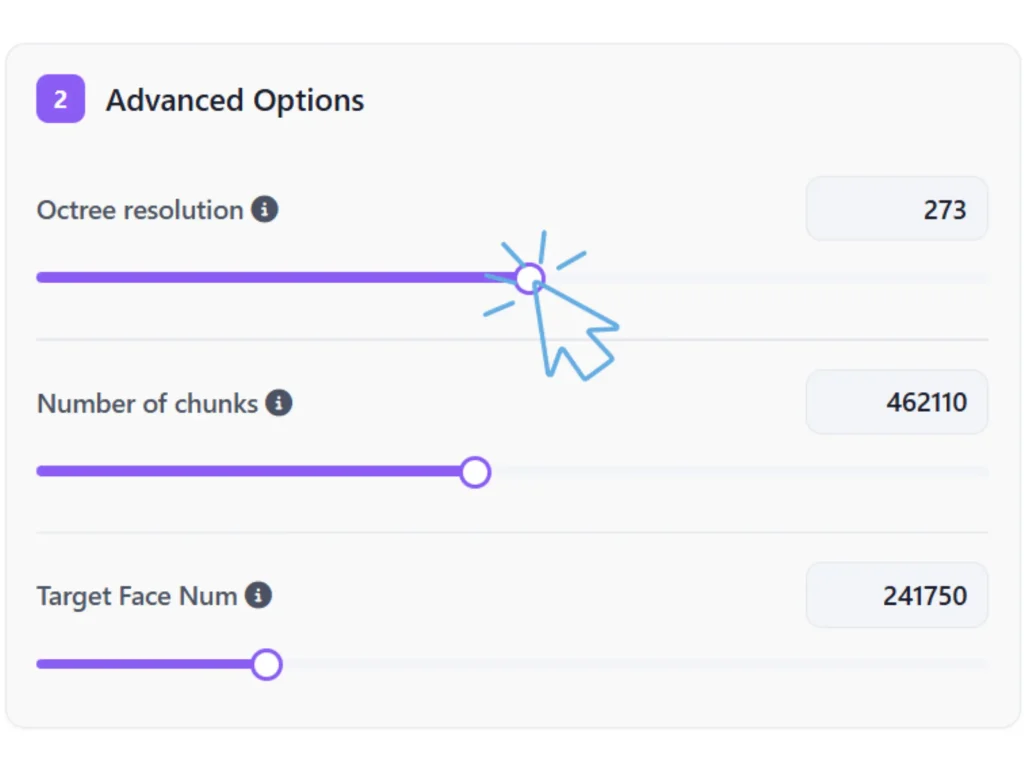
2. Adjust Advanced Options
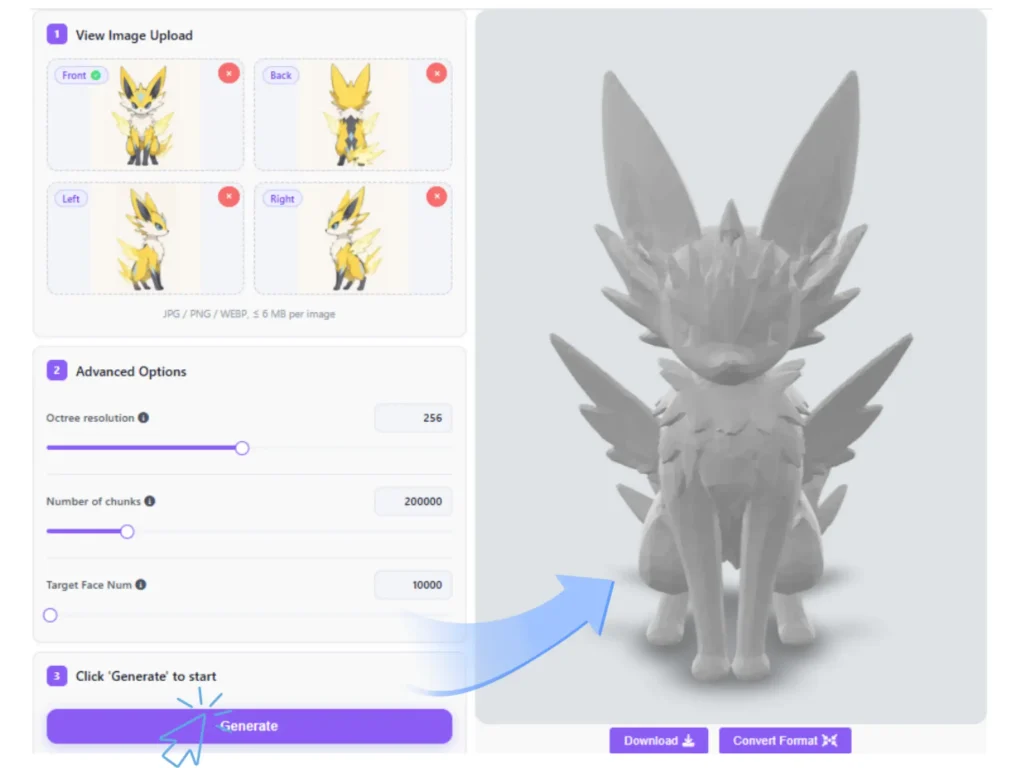
3. Generate Your 3D Model
What our supporters say
What Creators Say About Multi-View 3D Model Generation
Better Results from Multiple Views
The multi-view images to 3D model feature makes it much easier to capture different sides of a product. I can provide several views instead of relying on a single image, and the resulting model has been much more useful for early design work.

Daniel Carter
3D Product Designer
More Control Over Complex Shapes
I’ve been experimenting with the multi-view images to 3D model feature for creating rough assets. Being able to add side and back views gives me more control over the shape, especially when the object has details that aren’t visible from the front.
Sophia Bennett
Game Artist
A Practical Multi-View Workflow
The multi-view to 3D feature is straightforward and gives me a practical way to turn reference images into usable 3D assets. I particularly like having advanced settings available when I need to adjust the mesh complexity for different projects.
Marcus Lee
3D Visualization Specialist
Turn Multi-view Images to a 3D Model
Bring different views of an object together and create a detailed 3D model with a simple multi-view workflow. Upload your images, adjust the settings, and generate your model in just a few clicks.
FAQs
FAQs About Creating 3D Model from Multi-view Images
Everything you need to know about creating 3d model from multiple views
A front-view image is required to start the reconstruction. You can add additional images from the back, side, or other angles when needed. More useful viewpoints can provide the AI with additional information about the object's shape and details.
You can fine-tune the multi-view images to 3d model reconstruction with three advanced options:
- Octree Resolution — Controls the resolution used during 3D reconstruction. A higher resolution can capture finer geometric details, while a lower resolution can help reduce processing requirements.
- Number of Chunks — Determines how the reconstruction workload is divided into smaller processing sections. Adjusting this setting can help manage the reconstruction process for different input images and model complexity.
- Target Face Num — Sets the target number of faces for the generated mesh. A higher value can produce a more detailed and complex mesh, while a lower value creates a lighter model that may be easier to process and edit.
Single-image generation reconstructs a 3D model from one visual reference, while multi-view generation uses multi-view images of the same object from different angles. Additional views can provide more information about areas that are not visible in a single image.
Yes, you can use the multi-view 3D generation feature for free. Upload your images, configure the available options, and generate a 3D model without requiring a paid subscription.
Yes, the generated 3D models can be used for commercial projects. You can incorporate your generated models into projects such as product visualization, design, marketing, games, and other commercial applications.