8 Best AI Texture Generators for Games and 3D Projects
Note: Free plans, credits, and download limits can change over time. The comparison below reflects our testing and the publicly available free-access options at the time of writing.
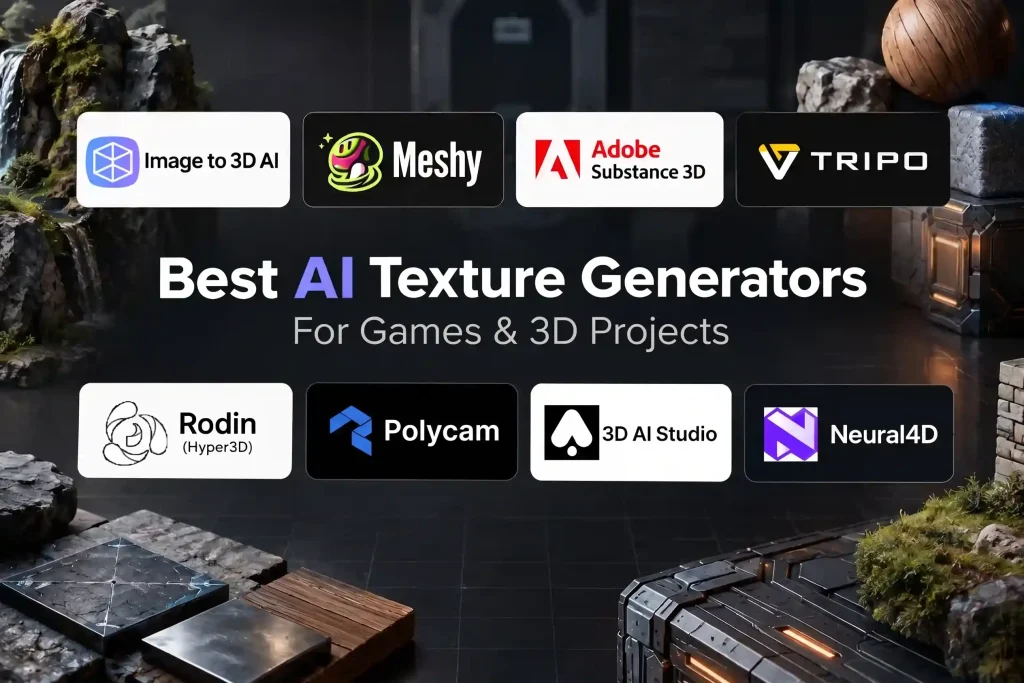
Best AI Texture Generators: Overall Comparison
| Tool | Rating | Advantages | Disadvantages | Price |
|---|---|---|---|---|
| Image to 3D AI |
★★★★★ ★★★★★
|
|
|
|
| Meshy |
★★★★★ ★★★★★
|
|
|
|
| Adobe Substance 3D | Not tested |
|
|
|
| Tripo |
★★★★★ ★★★★★
|
|
|
|
| Rodin |
★★★★★ ★★★★★
|
|
|
|
| Polycam | Not tested |
|
|
|
| 3D AI Studio | Not tested |
|
|
|
| Neural4D |
★★★★★ ★★★★★
|
|
|
|
A note about the ratings: Tools are ordered by our overall recommendation for free-use workflows, not strictly by rating. These are practical ratings from our testing rather than official scores from the companies. We focused on the free-access experience, texture quality, workflow, and how useful the output is after generation.
How We Tested These AI Texture Generators
We focused on the things that matter most when actually using an AI texture generator: texture quality, PBR support, input options, download formats, and free-use limits.
For tools with free access, we generated textures and checked the results directly. For tools we could not test hands-on without a subscription, we summarized their strengths from publicly available sources instead: the official product pages, user reviews, and third-party blog coverage. These summaries are clearly marked and should be read as research, not hands-on testing.
We also looked at how easily each tool fits into a typical 3D workflow, especially when texturing an existing model or preparing assets for games, 3D printing, and other projects.
What to Check Before Choosing a Tool
Before picking an AI texture generator, ask one simple question:
What are you actually trying to texture?
If you already have a character, prop, building, or other 3D model, a model-aware texture generator may make more sense.
If you need a material for a large surface such as a floor, wall, road, or terrain, a generator that produces seamless or tileable materials may be more useful.
This distinction also matters when searching for the best AI to generate textures for maps. In a game or 3D environment, “maps” can include terrain, roads, floors, walls, buildings, rocks, and other environmental surfaces.
AI Texture Generator Comparison: What We Found

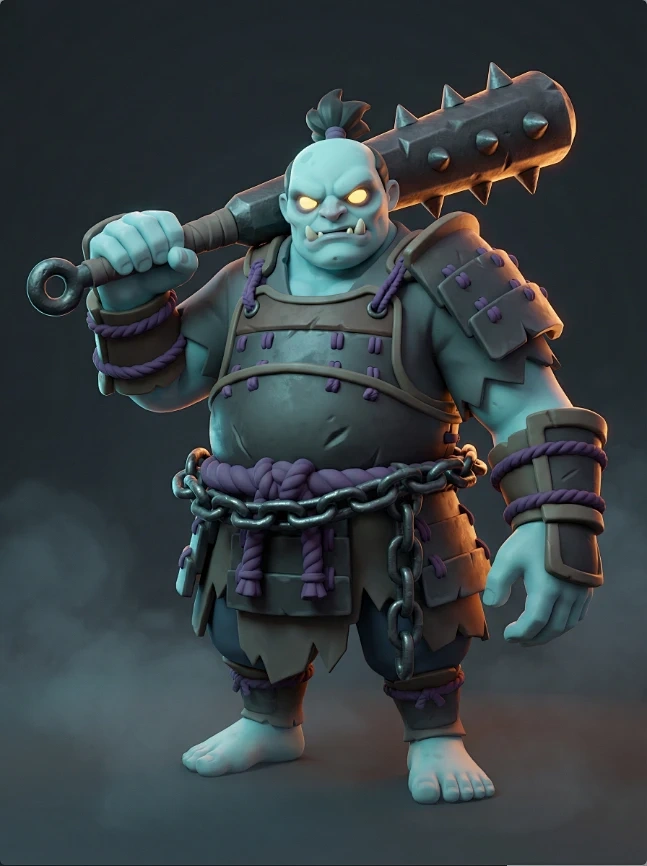
1. Image to 3D AI
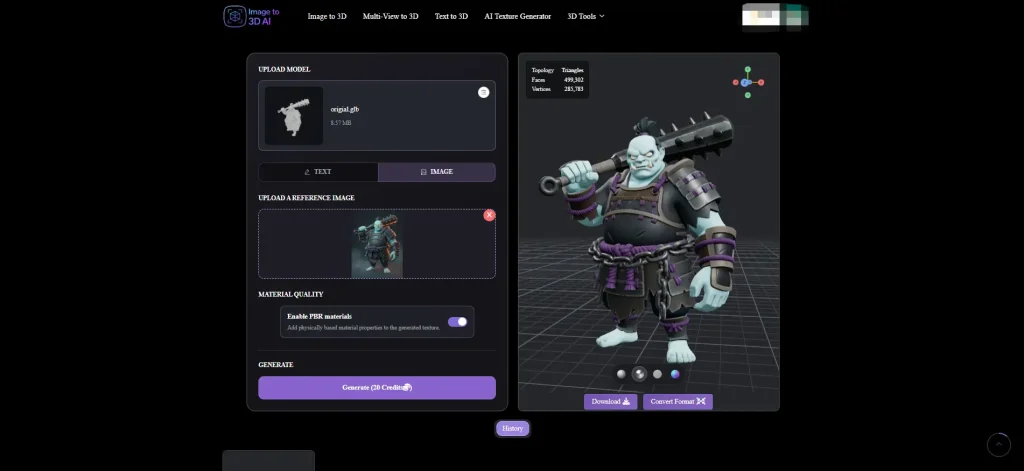
Advantages:
- Supports both text and image input
- PBR support
- Four useful viewing modes: White, Rendered, Albedo, and Normal
- Free downloads
- Built-in free 3D file conversion
The four viewing modes make it easier to check what is actually happening with the texture instead of judging everything from the final rendered view. Albedo and Normal are particularly useful when checking the texture itself.
Another practical advantage is that the downloaded model can be converted into other formats with the built-in 3D file converter when GLB is not the format you need.
Disadvantages:
- GLB is the only download format
- Generation uses credits
- Once the available credits are used, you need to wait for new credits rather than simply continuing to generate

Best for:
Beginners who want to try AI texturing and 3D generation without starting with a paid subscription.
Price:
Free. During our test, one generation used 20 credits. New users received 40 credits after signing up, with 10 additional credits available daily.
2. Meshy
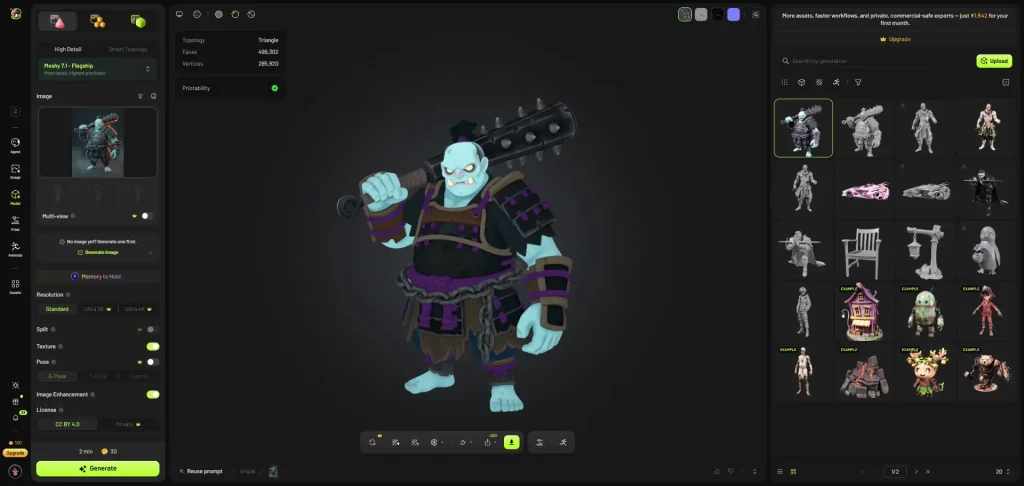
Advantages:
- PBR support
- Resolution options
- Model settings can be selected
- 4K and 8K resolution can be tried once
- Textures include additional shadow and realistic lighting effects
The resolution controls are useful if you want to compare different levels of texture detail. The texture result also adds some shadow and lighting effects, which can make the model look more realistic at first glance.
Disadvantages:
- The texture workflow can be confusing
- The Texture page can lead users toward model generation rather than directly generating a texture
- You need to upload an existing model and then use the texture workflow
- Free downloads are restricted
- The page indicates that six downloads are available, but during our test, the expected free download did not work as expected
This was one of the more noticeable differences between looking at the feature description and actually using the tool. If you only read the feature list, the workflow looks straightforward. Once you start testing it, however, you need to understand which part of the platform is actually generating the texture.
Best for:
Users who already have a 3D model and want more control over PBR and texture resolution.
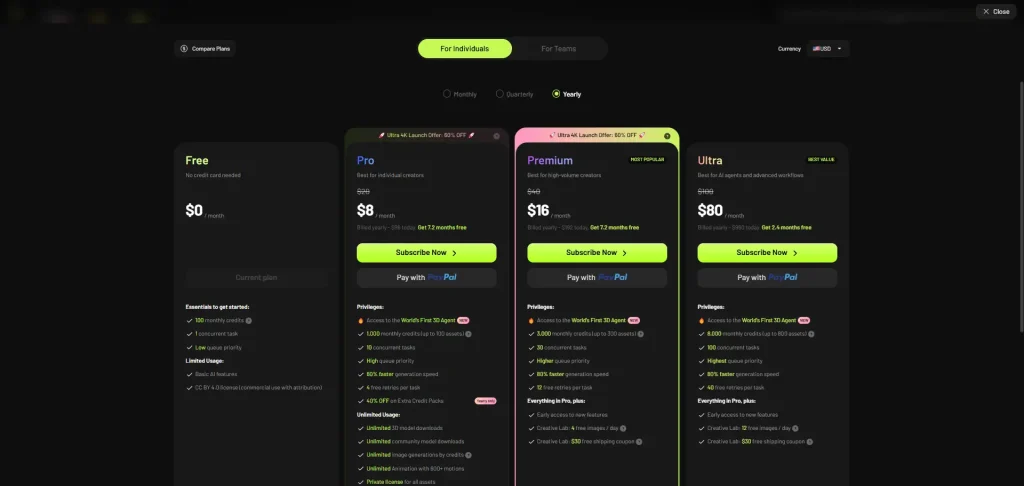
Price: During our test, texture generation used 10 credits, with 100 credits available per month on the free plan.
3. Adobe Substance 3D
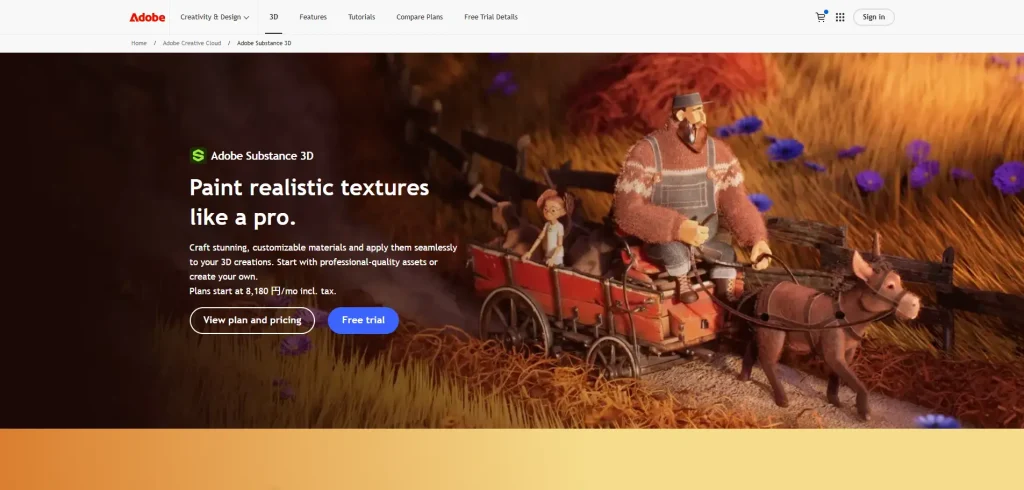
Advantages (from official info and user reviews):
Industry-standard PBR texturing suite for game and film production
- Smart materials and masks that adapt to mesh curvature and crevices
- Layer-based, non-destructive workflow with full manual control
- Thousands of ready-made materials in the Substance 3D Assets library
- Export presets for Unity, Unreal, Godot, and major offline renderers
Since continued access requires a paid subscription, we could not include it in our hands-on rating. These strengths are summarized from Adobe’s official documentation and third-party reviews.
Disadvantages:
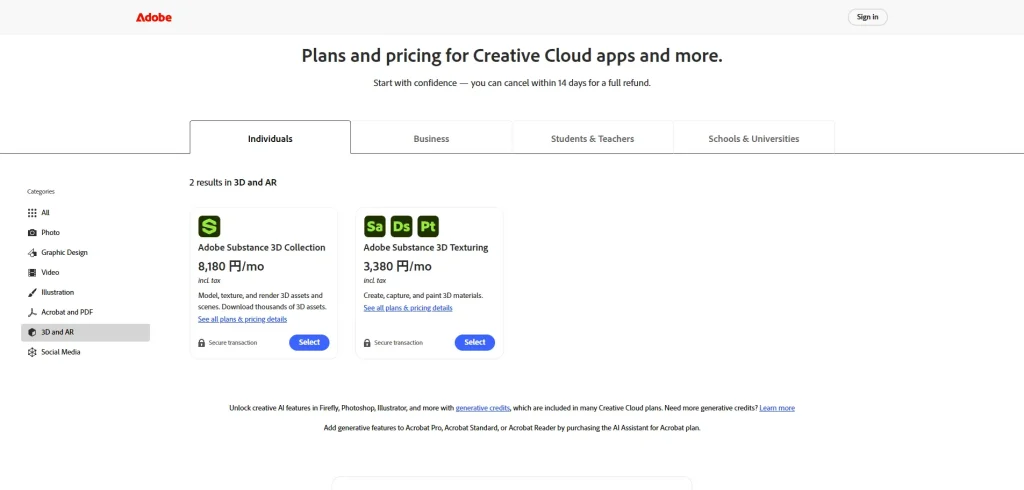
- Requires a paid subscription after the trial
- Not included in our hands-on free-version testing
Best for:
Users looking for a professional 3D texturing workflow and who are willing to use a paid tool.
Price: 30-day free trial, followed by a paid subscription.
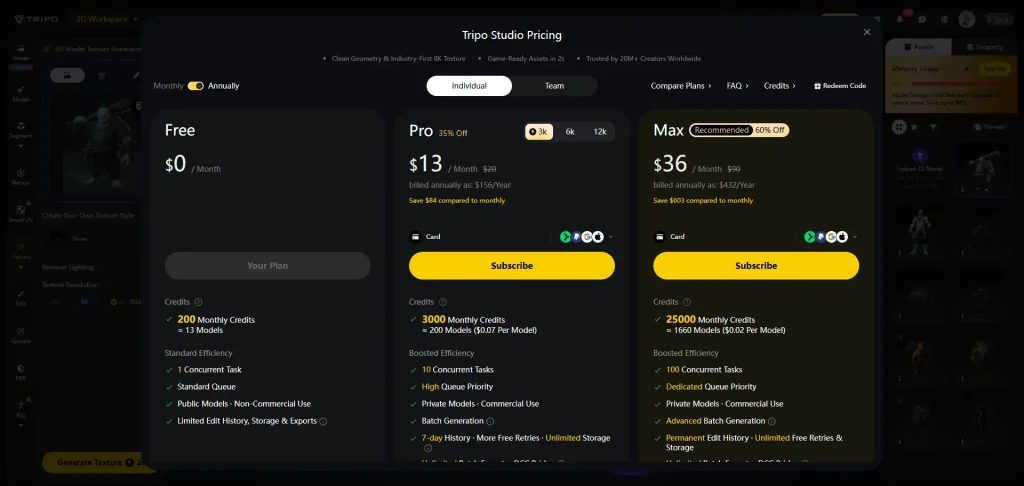
4. Tripo
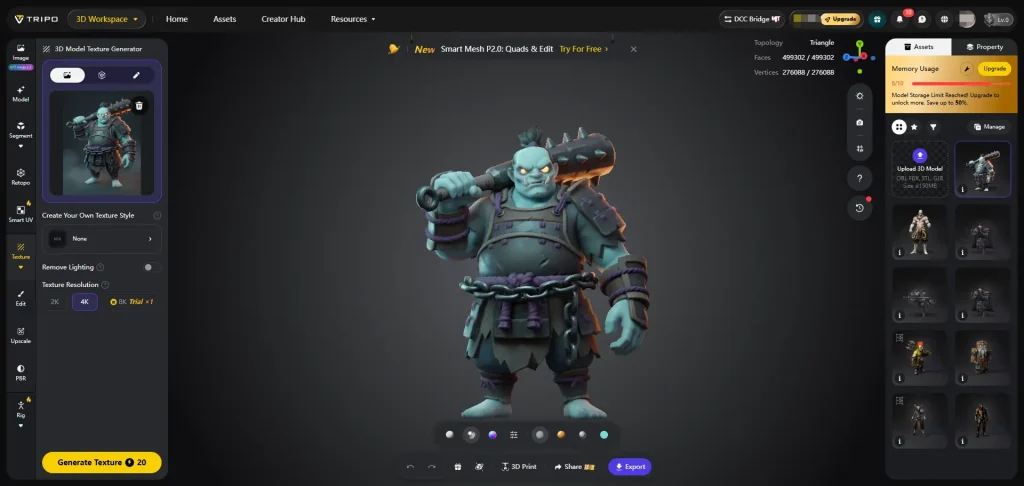
Advantages:
- Additional style selection
- Polished UV presentation
- Good visual effects and animation on the page
- Multiple download formats
- Connections with printing and modeling tools
The UV presentation is one of the more interesting parts of the experience. The page makes the 3D workflow easy to understand visually, especially if you are not used to inspecting UV-related information.
Disadvantages:
- Limited to 15 downloads in our test


- The back of the model appeared noticeably lighter than the front
- The difference may be related to the side lighting rather than the generated texture itself
The lighting issue is worth mentioning, but it should not automatically be treated as a texture-quality problem. In our test, the back of the model looked lighter, but this may have been caused by the lighting setup on the page.
Best for: Users who want a visually polished AI 3D workflow with style options and multiple export formats.
Price: 200 credits are provided after signup. There were no daily credits in our test.
5. Rodin
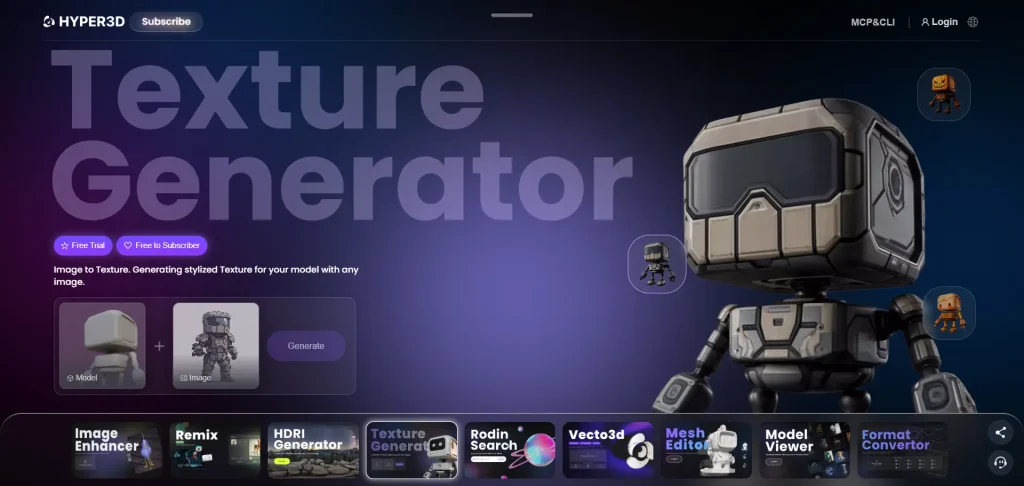
Advantages:
- Simple interface
- Upload model and image directly
- PBR option
- Creativity strength can be adjusted
- Multiple download formats
The initial interface is fairly clean. There are not too many controls competing for attention, which makes the basic workflow easy to understand.
Disadvantages:
- After logging in, the workflow redirects to another workspace
- The texture feature is difficult to locate after the redirect
- Texture quality was average in our test
- Free download was limited to 1K quality
The biggest problem for us was not the number of features but finding the feature again after logging in. A simple workflow becomes less simple when the user has to search for the texture function in another workspace.
Best for:
Users who prefer a simple AI 3D interface and do not need high-resolution free downloads.
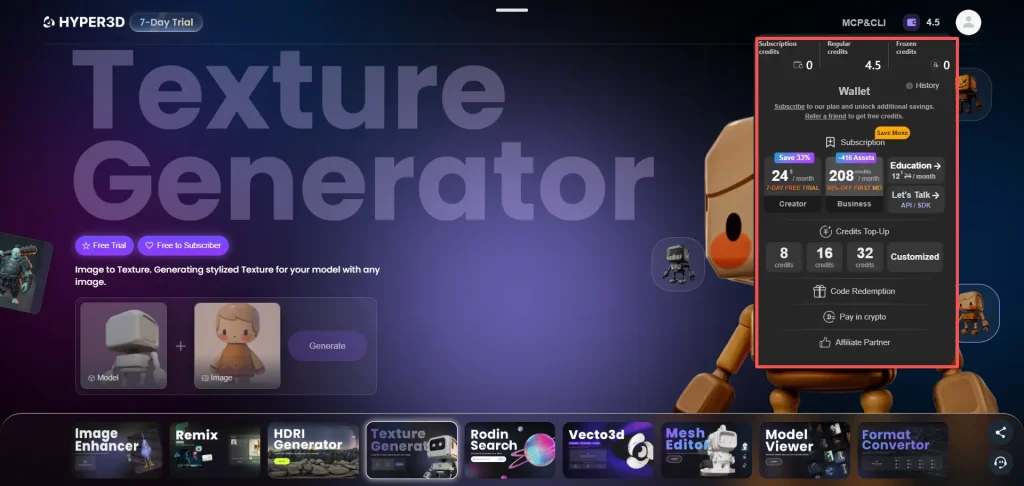
Price:
Generation is free in the tested workflow. Downloading once used 0.5 credits, or downloads were included with a subscription.
6. Polycam
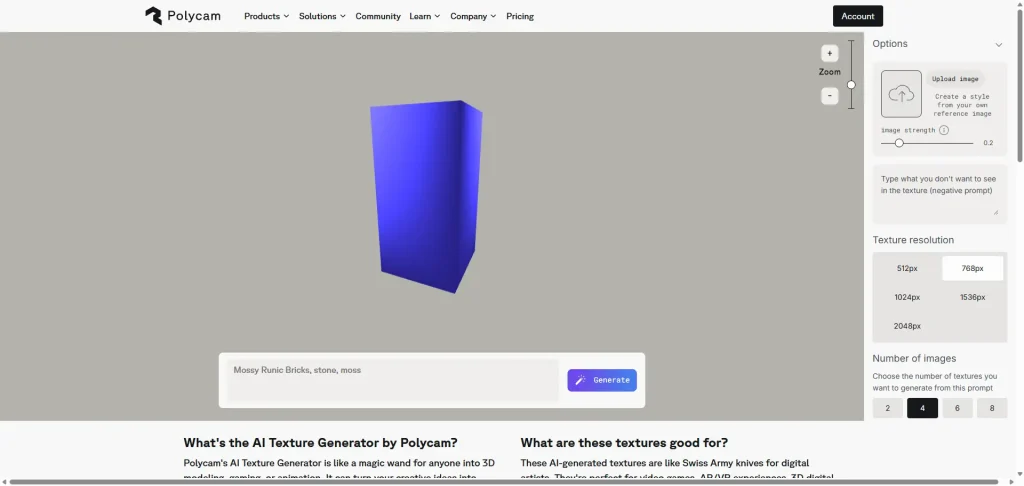
Advantages:
- AI reality capture combining LiDAR, photogrammetry, and Gaussian splatting
- Common export formats for Blender, Unity, and Unreal Engine
- Works across iOS, Android, and the web
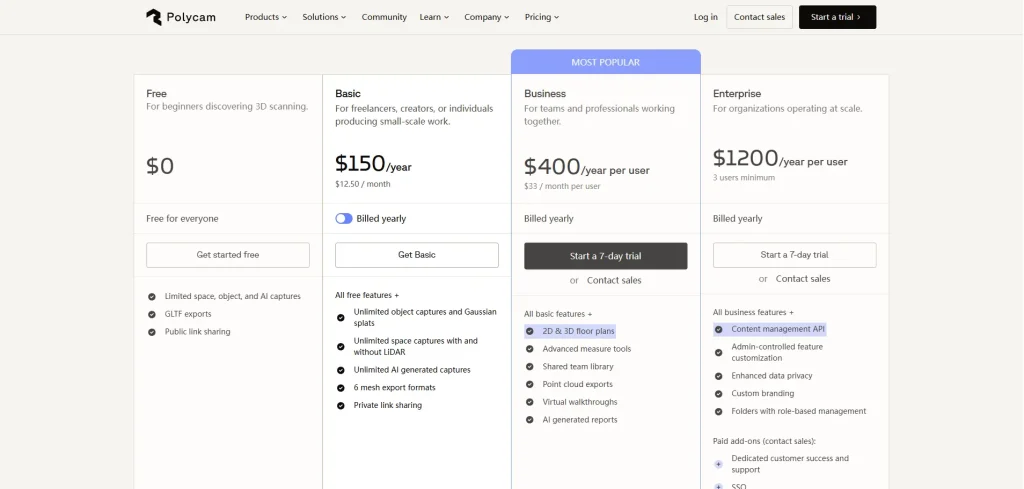
Because the free access is limited to a 7-day trial, we could not complete a hands-on texture test. This summary is based on Polycam’s official page and feature descriptions.
Disadvantages:
- The free trial requires a subscription and switches to paid access afterward
- We could not complete a hands-on texture generation test because the free access was not available without starting a subscription
Best for:
Users who are willing to try the platform through its trial period and potentially continue with a paid plan.
Price: 7-day free trial, then paid subscription.
7. 3D AI Studio
Advantages:
- Aggregates 20+ AI 3D engines (including Meshy, Tripo, and Rodin) in one account, switchable per generation
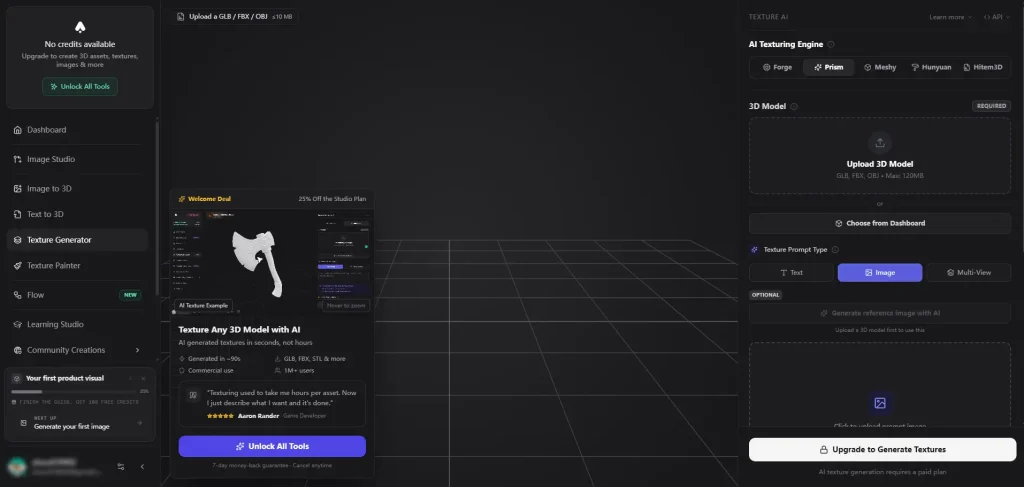
- Dedicated AI texturing tool: generates PBR materials from text prompts or paints them onto models
- Built-in quad-remesh for production-ready topology
- Claims production-ready exports for Unity, Unreal, and Three.js
Disadvantages:
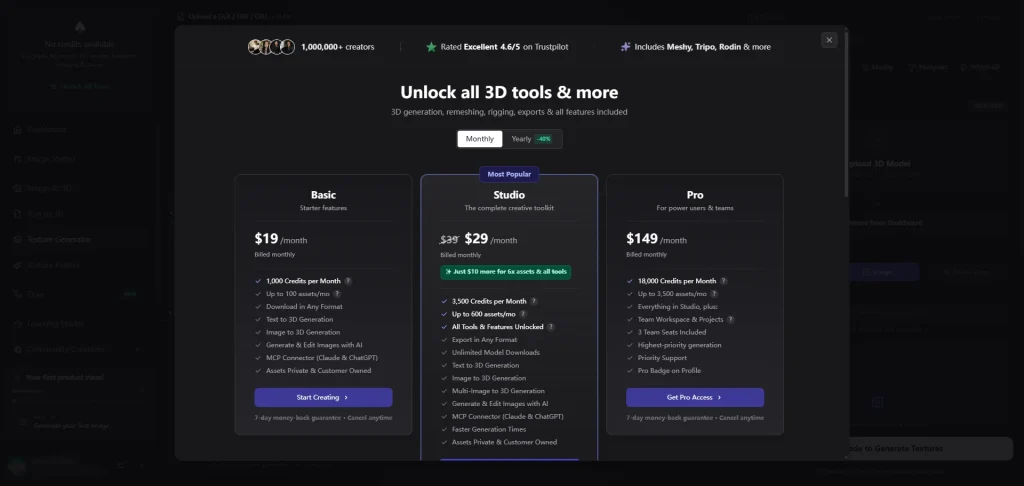
- Key functions require payment to unlock
- We could not perform a free hands-on texture generation test
Best for:
Users who are comfortable paying to access the platform’s full functionality.
Price: Paid access required.
8. Neural4D
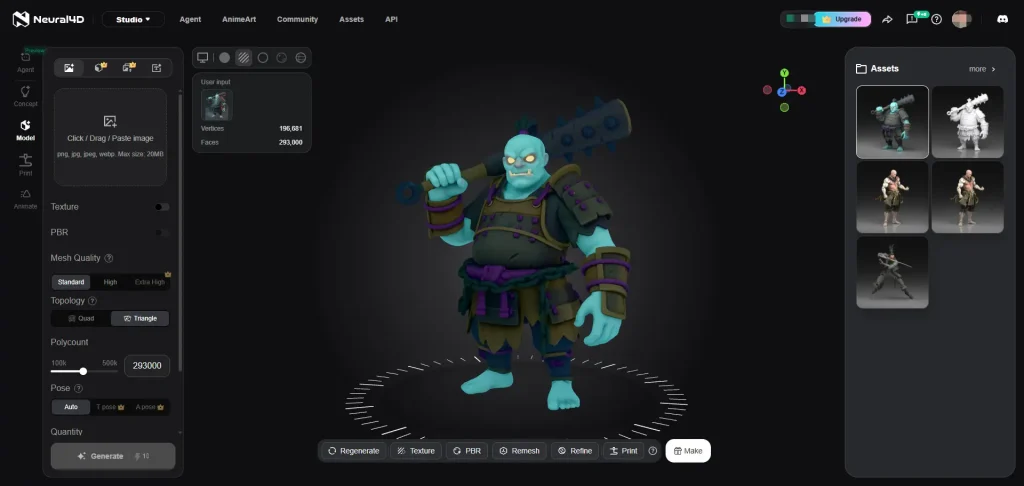
Advantages:
- Multiple AI features in one platform
- Relatively many free generations
- Direct connection with 3D printing tools
- Good UV presentation and animation
The UV presentation and animation were among the more noticeable positives during our test. The platform also provides more free attempts than some of the other tools we tested.
Disadvantages:
- Texture restoration was poor in our test
- Colors were not very accurate
- Free generation was slow
- Free results could not be downloaded
- There was no dedicated texture page
- The workflow requires generating a model first and then texturing it
The biggest issue was the gap between being able to generate something and being able to actually use the result. If you cannot download the free result, the practical value of a free generation is naturally limited.
Best for:
Users who want to explore multiple AI 3D functions and are mainly interested in testing the platform rather than immediately downloading production-ready textures.
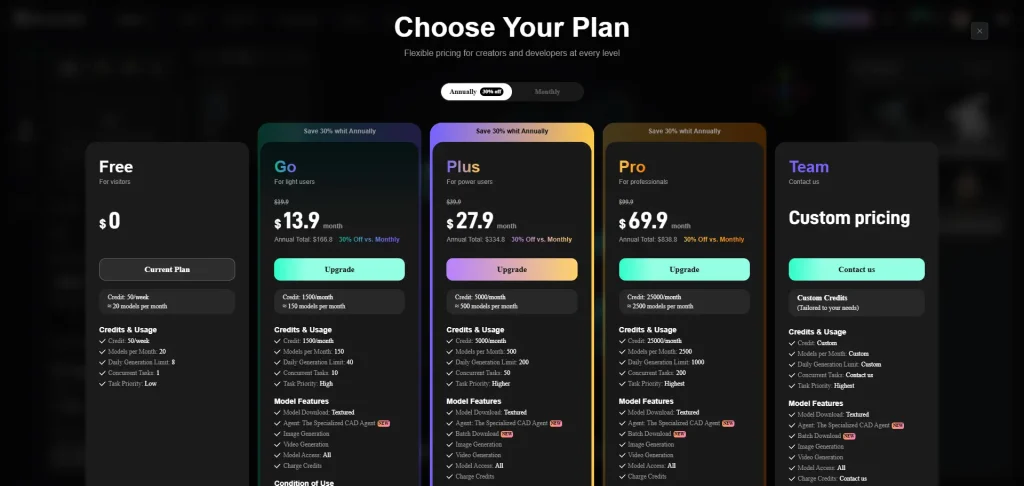
Price: 10 credits per generation, with 50 credits available each week.
How to Choose the Right AI Texture Generator
If You Are a Beginner
Start with a tool that offers free access and a simple workflow.
Image to 3D AI supports both text and image input, PBR, and four preview modes. Its free credit system also makes it possible to try the workflow without starting a subscription.
Tripo is another option if you want more download formats and additional style choices.
If You Already Have a 3D Model
Look for an AI 3D model texture generator that allows you to work with an existing mesh.
Meshy, Tripo, Rodin, and Image to 3D AI can be considered for this type of workflow, but they differ in controls, downloads, and how the texture workflow is accessed.
If you already know which 3D format your project uses, check the available export formats before choosing a tool.
If You Are Creating Game Assets
For game assets, pay attention to PBR support, texture quality, resolution, and export options.
Meshy provides resolution options and PBR support, while Image to 3D AI provides PBR and several preview modes. Tripo offers multiple download formats, which can be useful when moving assets between different applications.
The best fit depends on whether your priority is texture controls, previews, or file compatibility.
If You Are Texturing Maps and Environments
If you are looking for the best AI to generate textures for maps, first identify the type of surface you need to create.
Common examples include:
- Grass and terrain
- Roads
- Stone paths
- Concrete
- Brick walls
- Wooden floors
- Metal panels
- Rock surfaces
For these materials, look for PBR support, consistent patterns, and textures that can be repeated without obvious seams.
An AI texture generator that produces a detailed single image is not necessarily the right choice for a large environment. For maps and terrain, tileability and consistency can be more important than maximum resolution.
If You Need Different Export Formats
File compatibility can become important when moving textures or models between different tools.
Tripo provides multiple download formats, while Image to 3D AI primarily downloads in GLB and also provides a free format converter for converting supported 3D files.
Check the required format before generating anything, especially if the asset needs to move between Blender, Unity, Unreal Engine, a 3D printer, or another application.
If You Need Professional Material Control
If you need detailed manual control over materials, a professional texturing application may be more appropriate than a simple AI generator.
Adobe Substance 3D is designed for professional material workflows, but it was not included in our hands-on rating because continued access required a paid subscription after the trial.
For production work, consider whether you need to manually adjust properties such as roughness, normal intensity, color, wear, and masks.
Final Thoughts
Choosing an AI texture generator is less about finding one tool that does everything and more about matching the tool to your workflow.
- Beginner: prioritize free access and a simple interface.
- Existing 3D model: look for direct model texturing and suitable export options.
- Game assets: check PBR, resolution, consistency, and file compatibility.
- Maps and environments: prioritize seamless materials and consistent patterns.
- Multiple software workflows: check supported download formats.
- Professional material editing: consider tools that provide deeper manual controls.
Testing the same model and texture reference across several tools can also make the differences easier to judge before committing to a paid plan.