
How to Create Funny YouTube Thumbnails with a 3D Text Generator
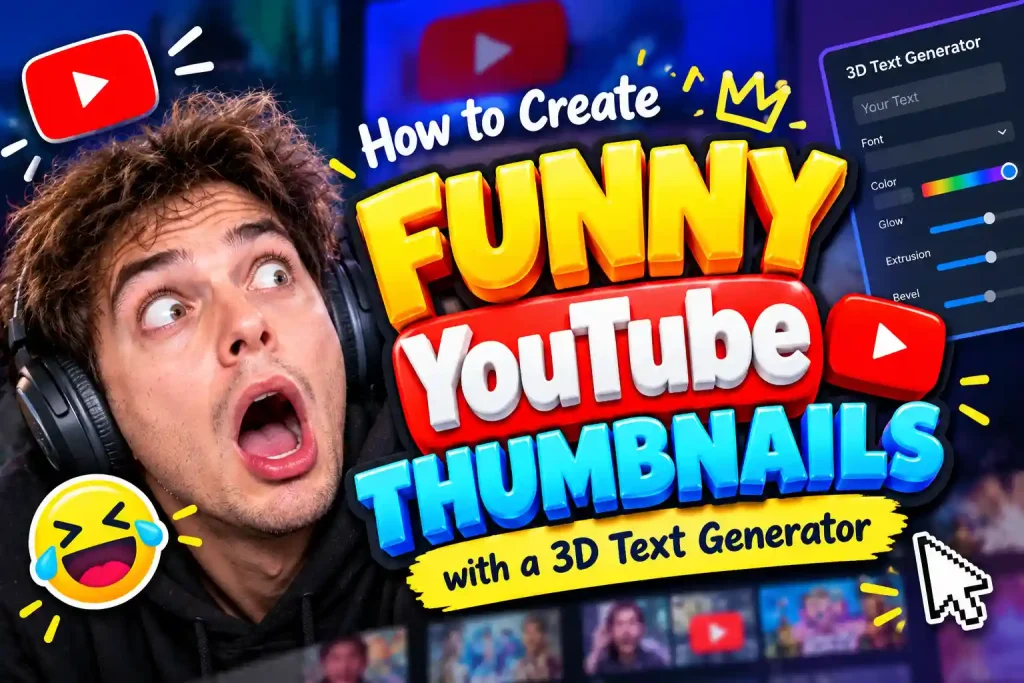
A funny YouTube thumbnail has one job: make people stop scrolling long enough to notice the joke. An exaggerated expression helps, but the right words can make the whole image even more memorable. Think oversized lettering, unexpected colors, and text that looks like it could jump straight off the screen.
That’s where 3D text comes in. Instead of relying on plain captions, you can use dimensional lettering to emphasize punchlines, amplify reactions, and give your thumbnails a more distinctive look.
With a 3D text generator, you can create custom lettering without manually modeling every character. Whether you’re making gaming videos, reaction content, or comedy compilations, a few adjustments to your font, color, and depth can change the entire mood of your thumbnail.
And while this guide focuses on YouTube thumbnails, the same 3D lettering works just as well for stream overlays, meme images, posters, and social media posts.
Why 3D Text Makes YouTube Thumbnails More Eye-Catching
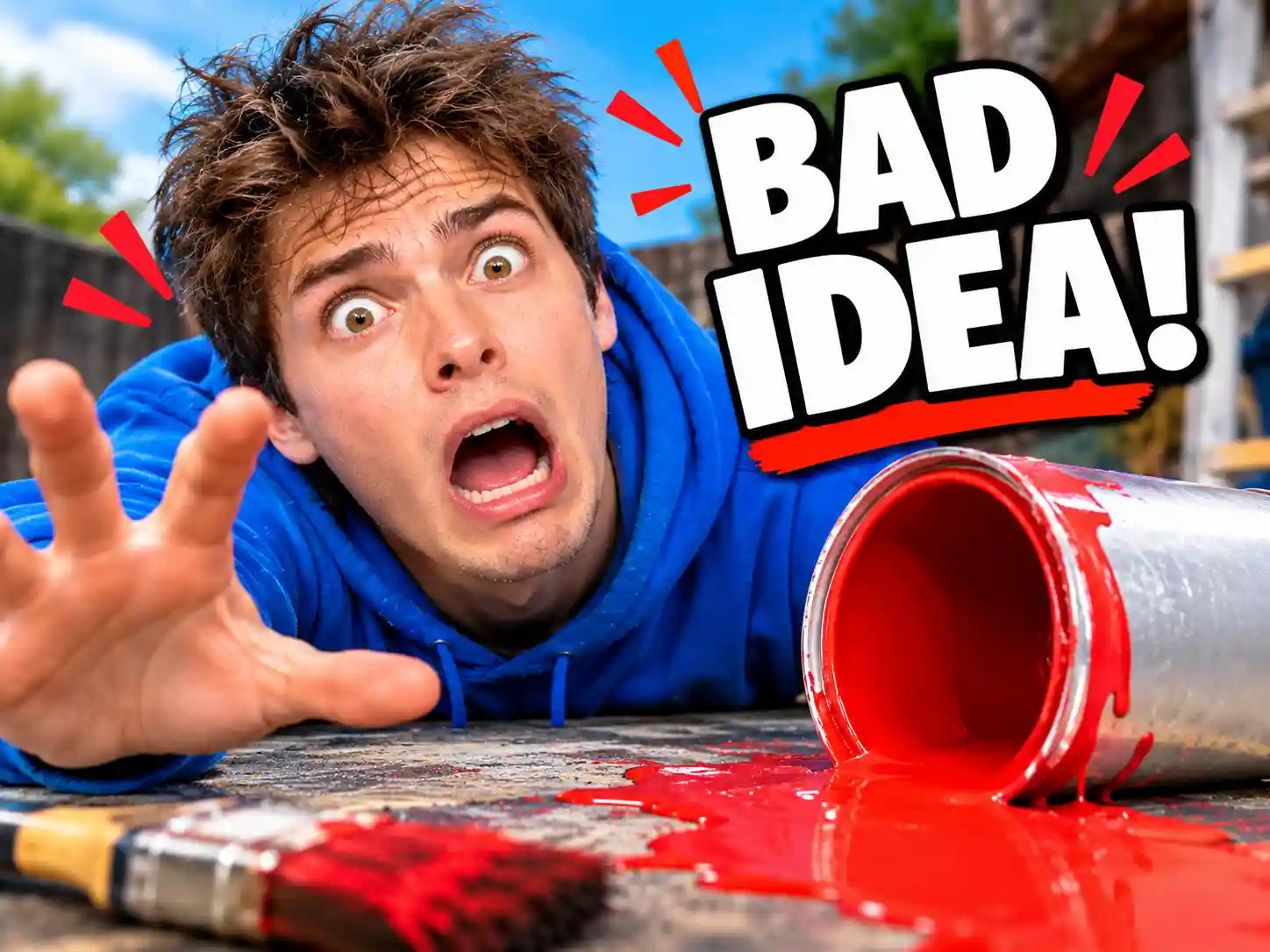
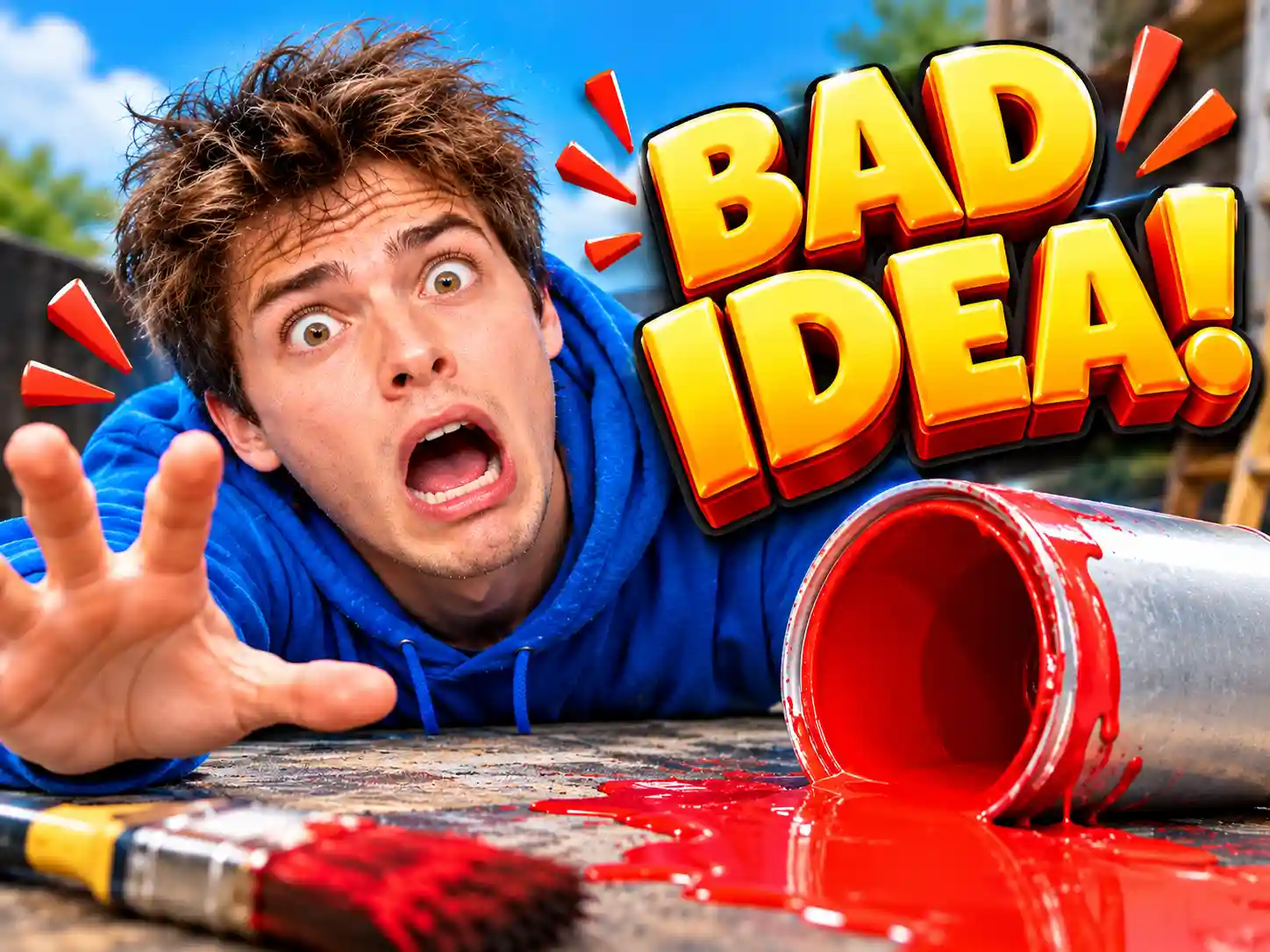
A funny YouTube thumbnail needs to communicate its joke almost instantly. Plain text can get the message across, but dimensional lettering adds depth, contrast, and a stronger visual presence.
Compare a flat caption like “BAD IDEA” with chunky, colorful 3D text. The words are the same, but the second version can feel more dramatic and playful. The goal isn’t to add every possible effect—it’s to make the punchline stand out without distracting from the main subject.
How to Create 3D Text for Your YouTube Thumbnail
Step 1: Enter Your Thumbnail Text
Start with the phrase you want viewers to notice first.
For example, a gaming creator might choose GAME OVER, while a reaction creator might prefer WHAT?!. Short, expressive phrases are usually easier to emphasize than complete sentences.
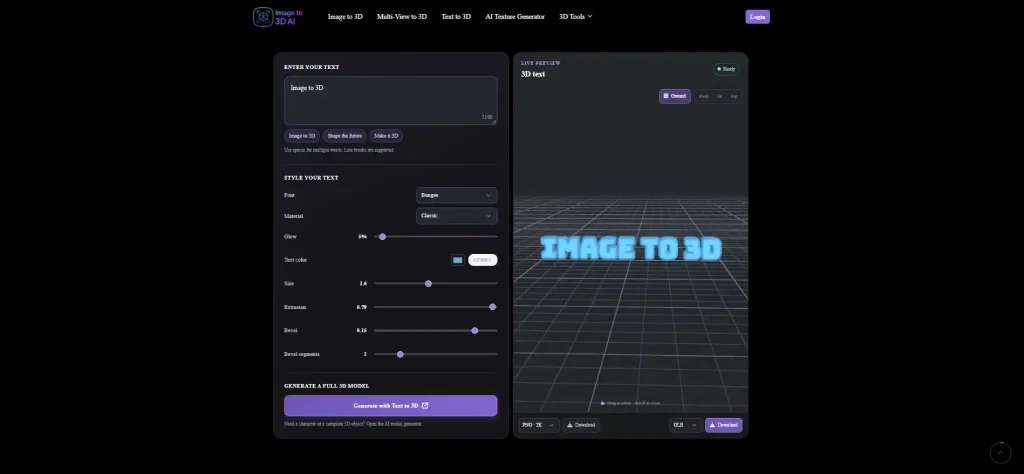
Open the 3D Text Generator and enter your text. Think about the tone of your video before choosing a font. A thick, playful typeface may suit a comedy compilation, while a sharper style might fit a more dramatic gaming thumbnail.
Step 2: Customize the Font and 3D Effects
This is where you can experiment with different visual directions.
Choose a font and material, adjust the color, and explore the available Glow, Size, Extrusion, and Bevel controls. Each setting affects a different part of the result, so try changing one or two at a time.
For example:
- For a gaming thumbnail, try bright colors and a glowing effect.
- For a dramatic fail, experiment with thicker lettering and deeper extrusion.
- For a playful reaction, use a bold font with contrasting colors and moderate depth.
You can preview the 3D text as you work, making it easier to compare variations before downloading.
Step 3: Preview and Export Your 3D Text
Before exporting, check whether the phrase is easy to recognize and whether the dimensional effects support the overall look.
Once you’re happy with the result, download your text as a PNG image for use in a thumbnail design. The tool also supports GLB, STL, and OBJ exports for other 3D workflows.
YouTube thumbnails display at 1280 × 720 (16:9), so export your PNG at 2K or higher to keep the lettering crisp when you crop and reposition it in your editor.
Before using the text in your thumbnail, preview the final composition at a smaller size. Make sure the headline remains readable, the main subject is visible, and the 3D effects don’t overpower the joke.
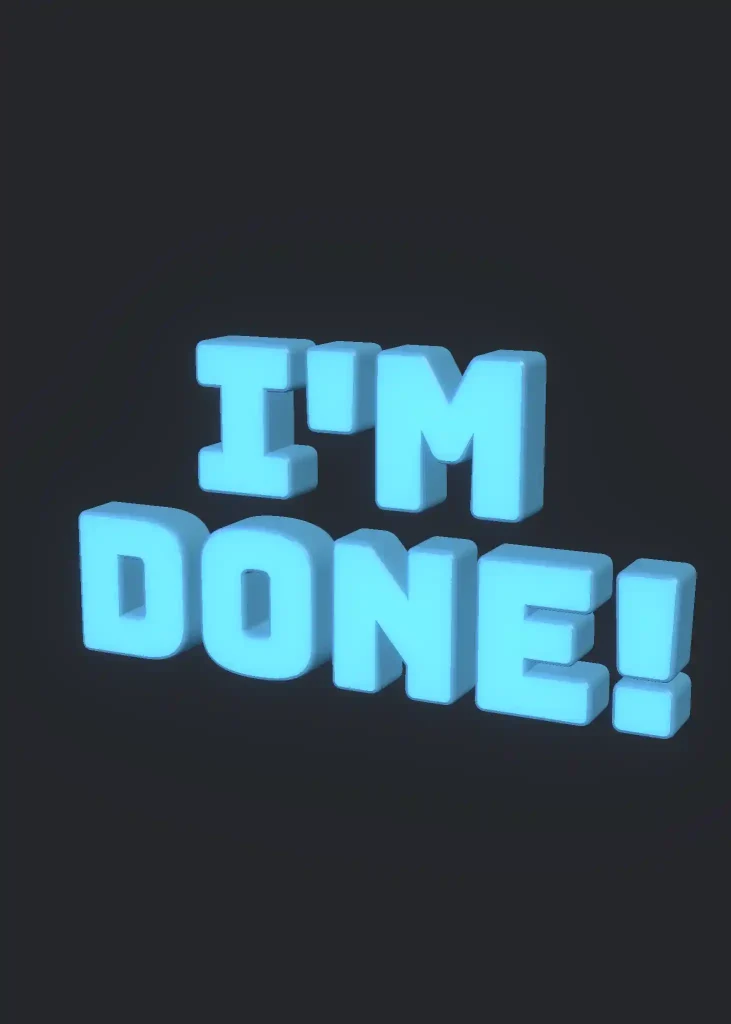
Step 4: Add the 3D Text to Your Thumbnail
Download your 3D text as a PNG and import it into an image editor such as Canva or Photoshop. Place it alongside your character, background, or key scene from the video.
Adjust the text size and position so the headline stands out without covering important visual details. You can also add arrows, circles, or other graphic accents to emphasize the funniest moment.
Before exporting, check that the text remains easy to read at a small size. Your finished thumbnail should combine the punchline and the image into one clear, eye-catching composition.
4 3D Text Styles for Funny YouTube Thumbnails
1. Bold and Chunky Text
Best for: Gaming fails, comedy compilations, and exaggerated reactions.
Thick lettering is useful when you want a short phrase to dominate the thumbnail. It gives the words a strong silhouette and makes them easier to distinguish from surrounding elements.
Try phrases like:
- GAME OVER
- I’M DONE!
- TOTAL FAIL
Choose a bold font and experiment with the text size, extrusion depth, and bevel settings. A chunky appearance works particularly well when the phrase is short and the letters have enough room to breathe.
Design tip: Avoid squeezing a long sentence into oversized lettering. The fewer words you use, the more impact each letter can have.
2. Neon and Glowing Text
Best for: Gaming videos, reaction content, and internet-meme aesthetics.
Glowing text can give a thumbnail an energetic, digital feel. It’s especially useful when the video features gaming setups, futuristic environments, or exaggerated on-screen reactions.
Try phrases like:
- WHY?
- NO WAY!
- BRO?!
Experiment with bright colors and the Glow setting to find a look that complements your image. Cyan, purple, and electric green can work well against darker backgrounds, while a contrasting outline or background can help preserve readability.
Design tip: Glow should make the words more noticeable, not blur them into the background. Check the result at a smaller size before settling on the effect.
3. Bright and High-Contrast Text
Best for: Challenge videos, funny moments, and fail compilations.
Sometimes, the simplest way to make a headline stand out is to choose a color that contrasts strongly with its surroundings.
Yellow lettering against a dark background can feel energetic and playful. Red can emphasize danger or a disastrous decision, while bright pink or purple can suit more absurd, exaggerated humor.
Try phrases like:
- NOT AGAIN!
- WHY ME?!
- IT GOT WORSE
A 3D text generator lets you experiment with color and material settings to find a combination that suits your thumbnail. You can keep the geometry relatively simple and let the color do most of the work.
Design tip: Start with one dominant text color. Add other colors only when they help distinguish the headline or reinforce the joke.
4. Deep and Beveled 3D Text
Best for: Dramatic reactions, over-the-top challenges, and exaggerated headlines.
Want your text to look more like a physical object than a flat caption? This is where extrusion and bevel settings become useful.
Extrusion controls how far the lettering extends into the third dimension. Increasing it can make the text look thicker and more substantial.
Bevel changes the edges of the letters, creating a softer or more pronounced transition between surfaces. Bevel segments provide additional control over how smoothly those edges are shaped.
Try phrases like:
- BIG MISTAKE
- ABSOLUTE CHAOS
- WHAT HAVE I DONE?
Experiment with different depths and edge treatments, then compare the results from the preview. You can create a dramatic look without relying on a dozen decorative effects.
Design tip: More depth isn’t always better. If the lettering becomes difficult to read or the edges distract from the message, dial the effect back.
Funny YouTube Thumbnail Examples You Can Try
Example 1: Gaming Fail — "SKILL ISSUE"
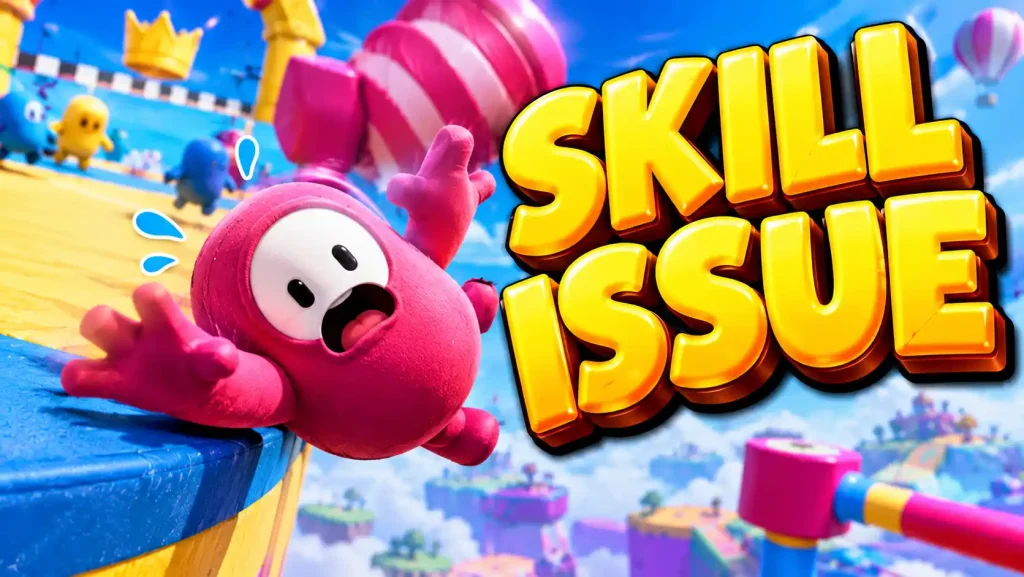
Visual direction: A game character falling into a trap or missing an easy jump, with the text placed prominently on the opposite side.
The humor comes from the contrast between the character’s failed attempt and the blunt, sarcastic caption. Choose a screenshot that captures the exact moment things go wrong rather than a generic gameplay image.
Keep the character and the failure visible. Place “SKILL ISSUE” in an open area of the frame so the words don’t cover the action. A slight angle can also make the composition feel more dynamic.
Composition tip: Use the character’s position to guide where the text goes. If the action happens on the right, leave room for the headline on the left, or reverse the layout when the screenshot works better the other way around.
Example 2: Reaction Video — "WHAT?!"
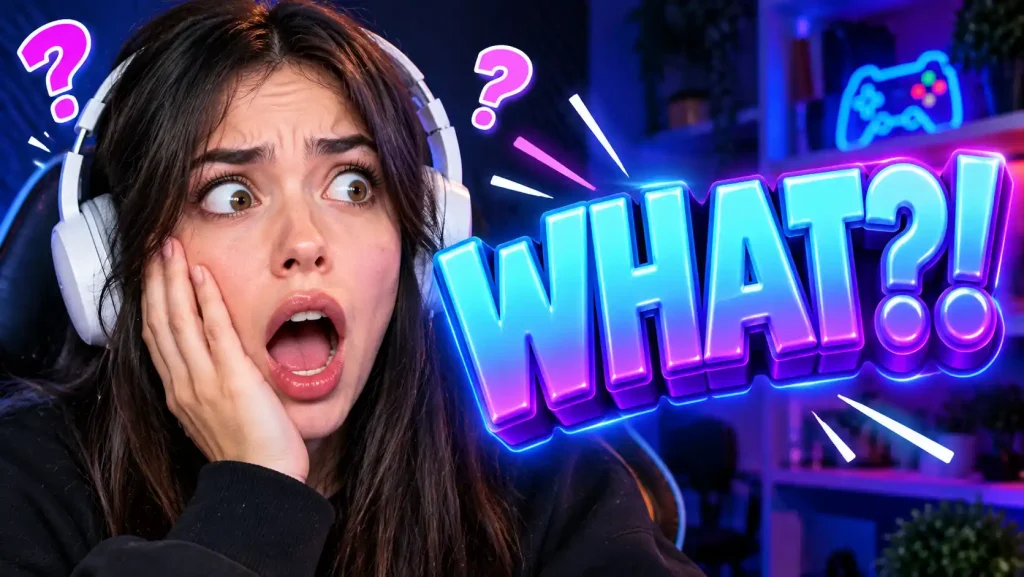
Visual direction: A close-up of a surprised face, with the text positioned beside the person’s expression.
Reaction thumbnails work best when viewers can immediately read the emotion. Wide eyes, an open mouth, or a look of disbelief can communicate the reaction before anyone reads the headline.
Choose a frame with a clear facial expression and avoid placing text over the eyes or mouth. The words “WHAT?!” should reinforce the reaction, not compete with it.
Composition tip: Crop closer to the face and keep the text on the side with more negative space. This creates a simple visual path from the expression to the headline.
Example 3: Challenge Video — "BAD IDEA!"
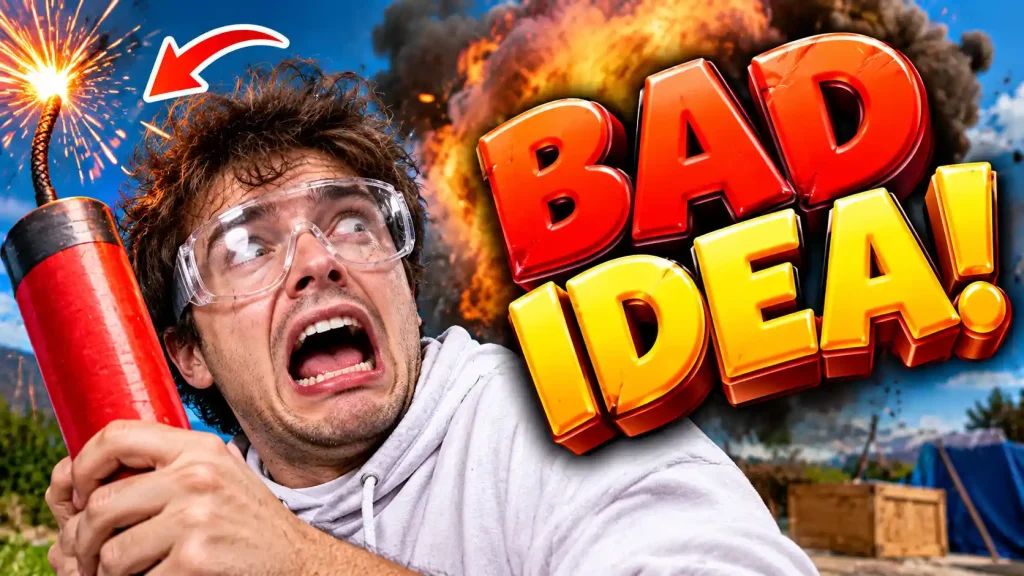
Visual direction: A creator standing beside a failed experiment, a messy room, or the aftermath of a ridiculous challenge.
This concept works well when the image hints at a problem but doesn’t reveal the entire story. A spilled pile of ingredients, an overturned stack of objects, or a visibly failed DIY project can make viewers curious about what happened.
Position the creator or the main object as the focal point, then use “BAD IDEA!” to emphasize the questionable decision. Leave enough of the scene visible for viewers to understand the situation at a glance.
Composition tip: Let the image provide the context and the text deliver the punchline. Avoid filling every empty space with extra captions, arrows, or decorative elements.
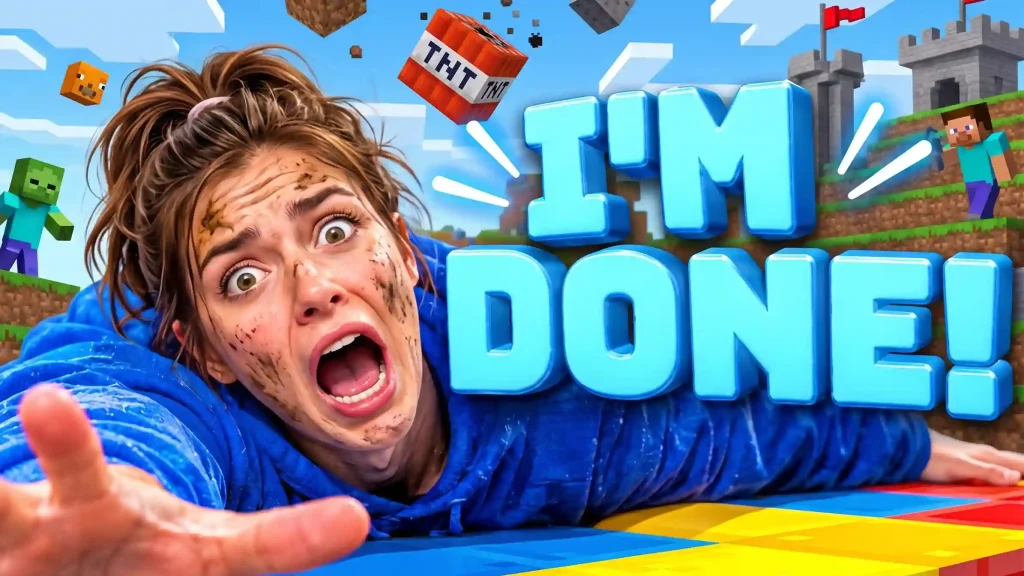
Example 4: Funny Moments — "I'M DONE!"
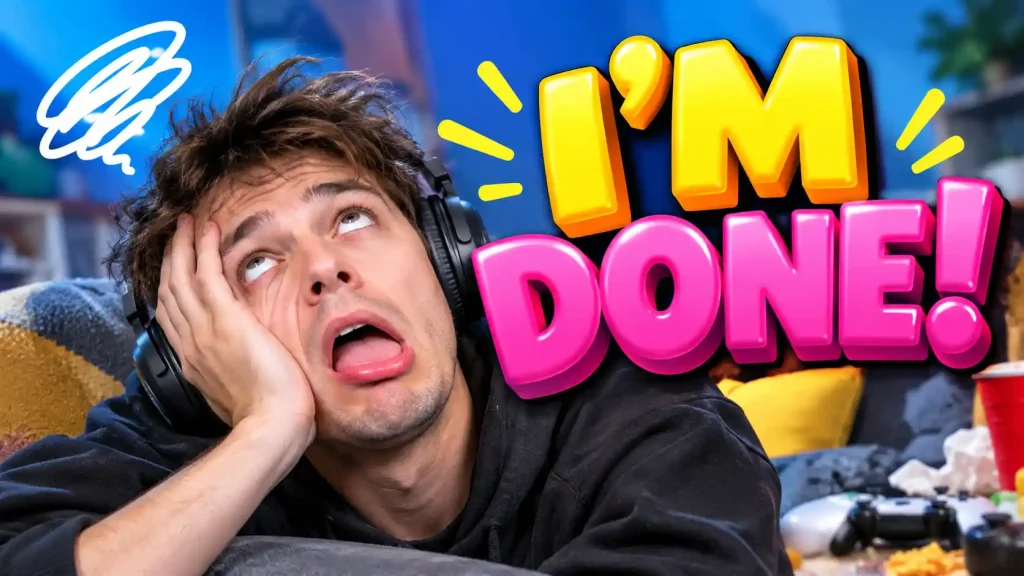
Visual direction: An exhausted creator leaning back in their chair, a character surrounded by chaos, or a group reacting to an absurd situation.
This phrase suits compilations where one ridiculous moment captures the mood of the entire video. The image should communicate frustration, disbelief, or comic exhaustion rather than simply showing someone standing still.
Use a frame with a strong pose or expressive gesture. Place “I’M DONE!” where it remains easy to read without hiding the most entertaining part of the scene.
Composition tip: Give the text and the main subject separate visual space. A clean layout makes the joke easier to understand, even when the expression and lettering are deliberately exaggerated.
What Makes These Thumbnail Concepts Work?
Conclusion
Funny YouTube thumbnails don’t need dozens of effects to stand out. A memorable phrase, a clear visual joke, and well-chosen typography can often do more than a crowded composition.
A 3D text generator gives you another way to experiment with that typography. From chunky gaming headlines to glowing reaction text and dramatic dimensional lettering, small adjustments can help you find a style that fits your content. Even if you’re not making YouTube thumbnails, the same workflow applies anywhere you need bold dimensional text — banners, cover art, or a striking post headline.
Ready to test your own ideas? Use the Image to 3D AI 3D Text Generator to create custom 3D lettering, explore different fonts and effects, and prepare text assets for your next YouTube thumbnail.