How to Turn a Rough Sketch into a 3D Model with AI
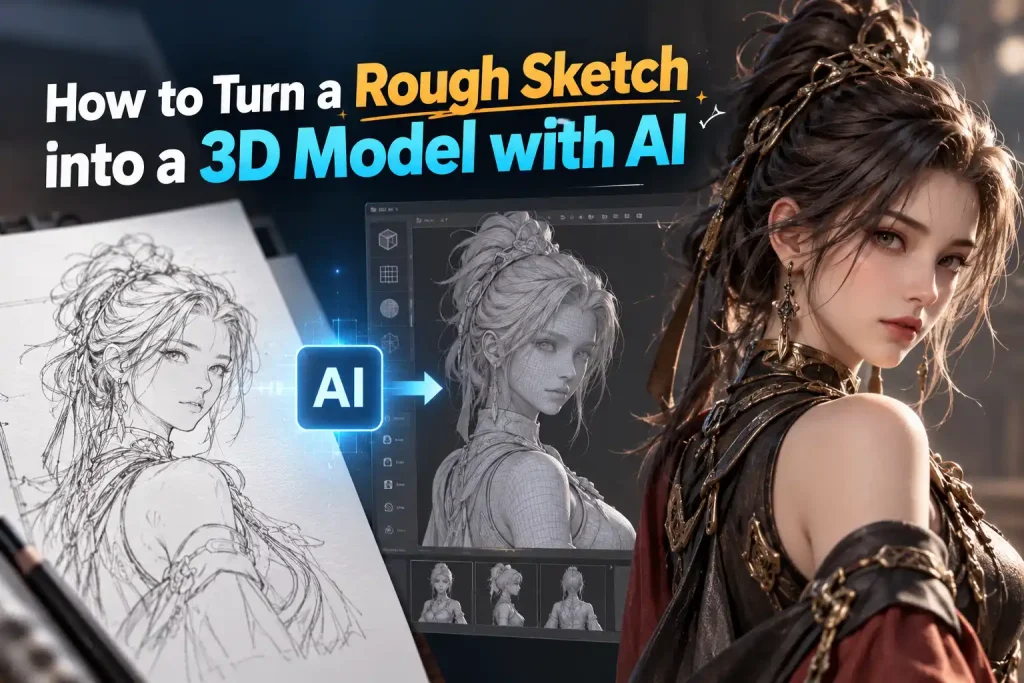
Ever drawn something that looked amazing in your head, slightly questionable on paper, and almost impossible to model in 3D? Welcome to the club.
The good news is that you don’t need to be a professional illustrator to create 3D models. With AI sketch-to-3D tools, even a few simple lines can become the starting point for a 3D design. You don’t need to polish your drawing into a presentation-ready concept first.
You can also use text prompts to refine shapes, materials, and styles, exploring different directions from the same sketch. In this guide, we’ll compare Sketch to 3D with Image to 3D, walk through the generation process, and share practical tips for getting better results.
Sketch to 3D vs. Image to 3D: What's the Difference?
Both tools turn visual input into 3D models, but they start from different places. Think of Sketch to 3D as working from an idea that’s still wearing its pajamas, while Image to 3D starts with something a little more dressed up.
| Sketch to 3D | Image to 3D | |
|---|---|---|
| Starting point | A rough sketch or simple drawing | A photo, illustration, or concept image |
| Main purpose | Develop and explore a design idea | Convert an existing visual reference into 3D |
| Creative flexibility | Use prompts to explore different styles from the same sketch | Use the reference image to guide the generated model |
| Best for |
Experimenting Experimenting with shapes, materials, and visual styles |
Recreating Recreating or translating an established visual concept |
When Should You Choose Each Tool?
Choose Sketch to 3D when your idea is still taking shape and you want to experiment with different styles, materials, or proportions from a simple drawing.
Choose Image to 3D when you already have a photo, illustration, or concept image that you want to use as the main visual reference for your model.
Try the Sketch to 3D Model tool to see how different prompts can transform the same sketch into different 3D designs.
Sketch to 3D: A Step-by-Step Workflow
Draw a Simple Sketch
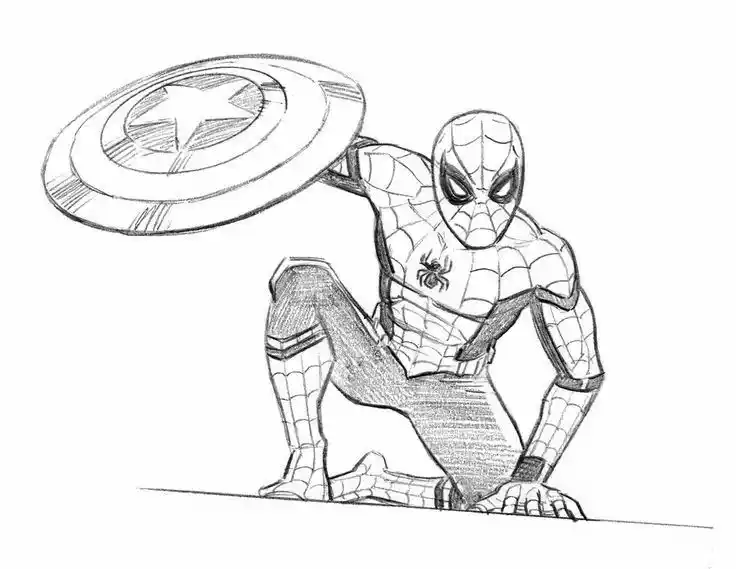
First, draw the object you want to create. A vase, a chair, a robot, a suspiciously ambitious potato-shaped character—whatever you’re working on.
Don’t worry about making it beautiful. Your sketch is doing a job, not auditioning for an art exhibition.
Focus on three essentials:
- The silhouette: Make the overall shape recognizable.
- The main features: Include important parts such as handles, legs, openings, or distinctive appendages.
- The proportions: Give the AI a reasonable idea of how the different parts fit together.
For example, a vase sketch can be as simple as an outline showing a rounded body, a narrow neck, and a wide opening. You don’t need to shade every curve or draw individual ceramic grooves.
Save the artistic perfectionism for later. Right now, you’re just giving your idea a place to start.
Customize Your Design with Smart Prompts
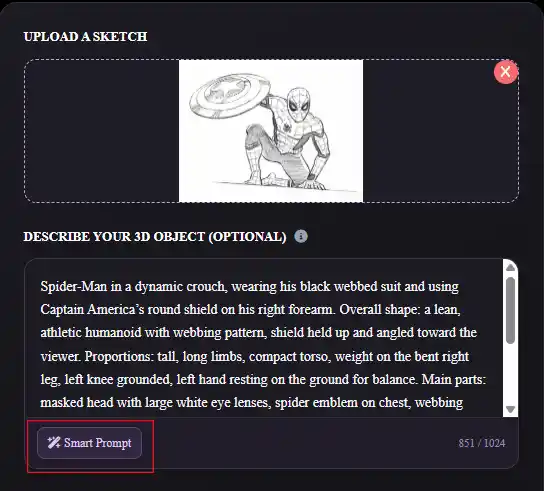
Your sketch communicates the object’s shape, but it may not tell the AI whether you want a ceramic vase, a chrome sculpture, or something more futuristic. That’s where Smart Prompt recognition comes in.
The sketch to 3D tool generates a suggested text prompt based on your uploaded sketch, describing the object and providing basic color guidance for 3D generation. You can then edit the prompt to refine the design, change its style, or add new details.
For example, a simple vase outline could become:
A modern ceramic vase with a wide rounded body, a narrow neck, a matte ivory finish, and subtle vertical grooves. Minimalist product design.
You can customize your prompt by adjusting four key elements:
- Materials: Matte ceramic, brushed metal, polished chrome, or natural stone.
- Style: Minimalist, futuristic, rustic, cartoon, or stylized.
- Shape: A wider base, elongated body, asymmetrical curves, or exaggerated proportions.
- Details: Decorative grooves, handles, patterns, or distinctive surface features.
Be specific about what you want rather than simply asking the AI to make the design “cooler.” A prompt like “a chunky purple robot with oversized boots and a glossy plastic finish” gives the model clearer visual direction.
Smart Prompt recognition is a starting point, not a fixed instruction. Edit the suggested prompt whenever you want to take the design in a different direction.
And if the suggested prompt isn’t quite right, edit it. Smart recognition is a helpful starting point, not a creative director who must be obeyed.
Choose Your Settings and Generate the 3D Model
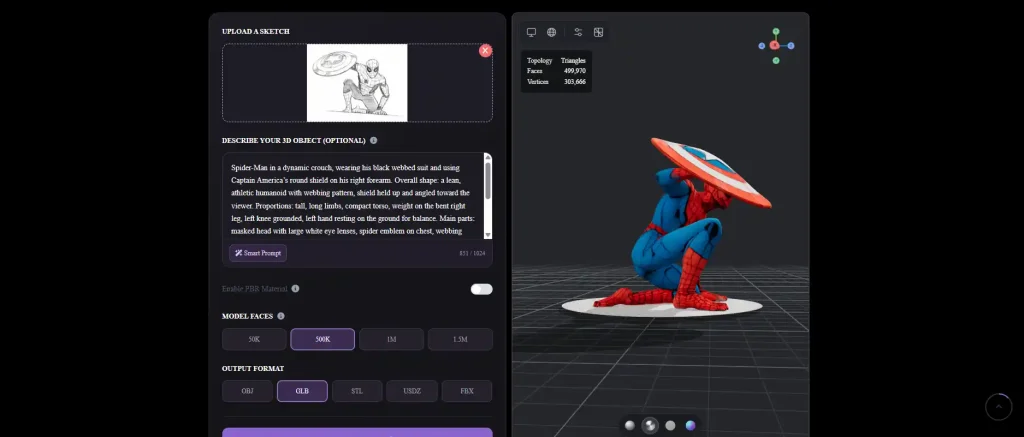
Before generating your model, adjust Model Faces to choose the level of geometric detail, then select your preferred output format. Generate the model and preview the result to check its shape and overall appearance.
Adjust the Lighting Environment to preview your model under different lighting conditions. If you need the surface details for another project, you can also download the texture directly from the preview.
Explore Different 3D Designs from a Single Sketch
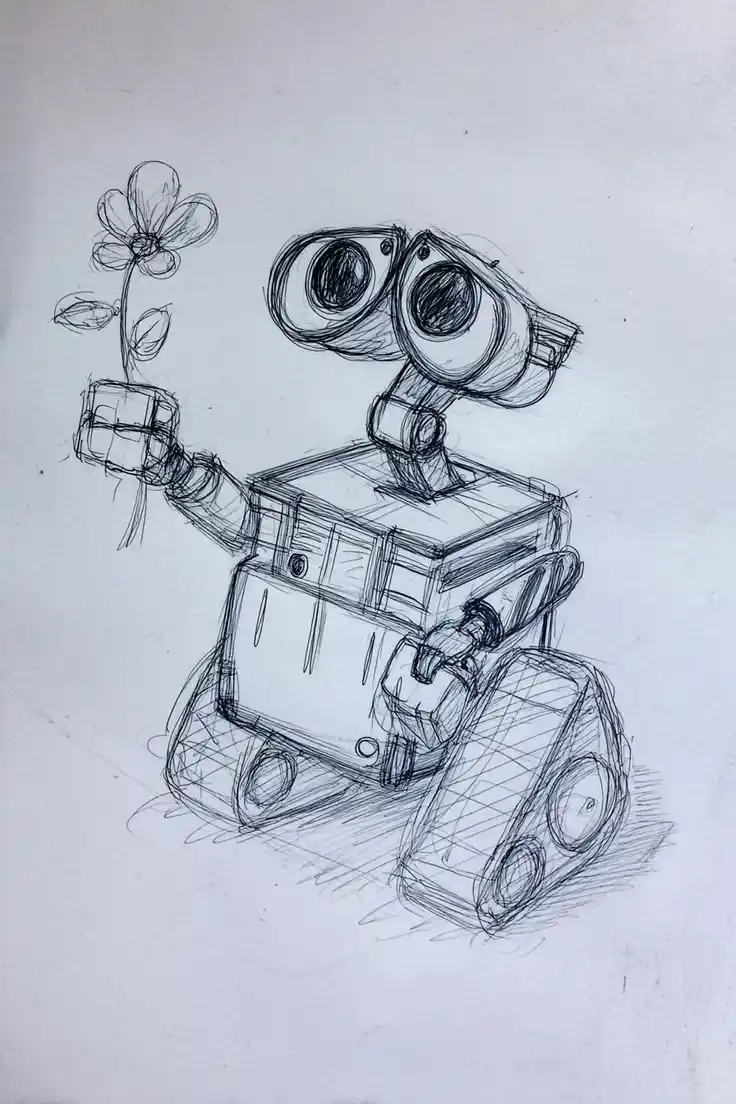
Original Sketch
The baseline drawing used as the starting point for generation.
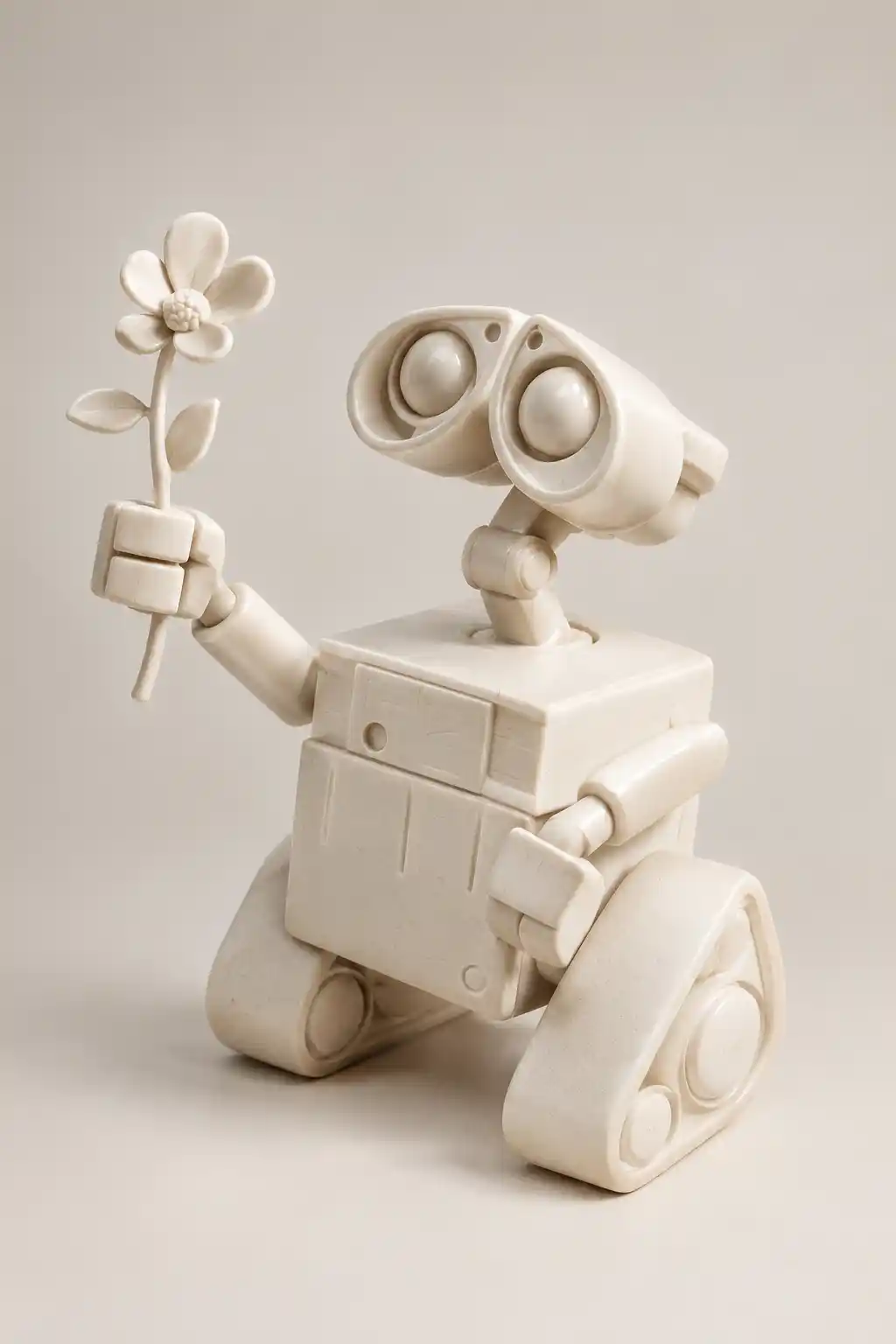
Minimalist Ceramic
A smooth ivory finish, clean curves, and a simple, modern silhouette.
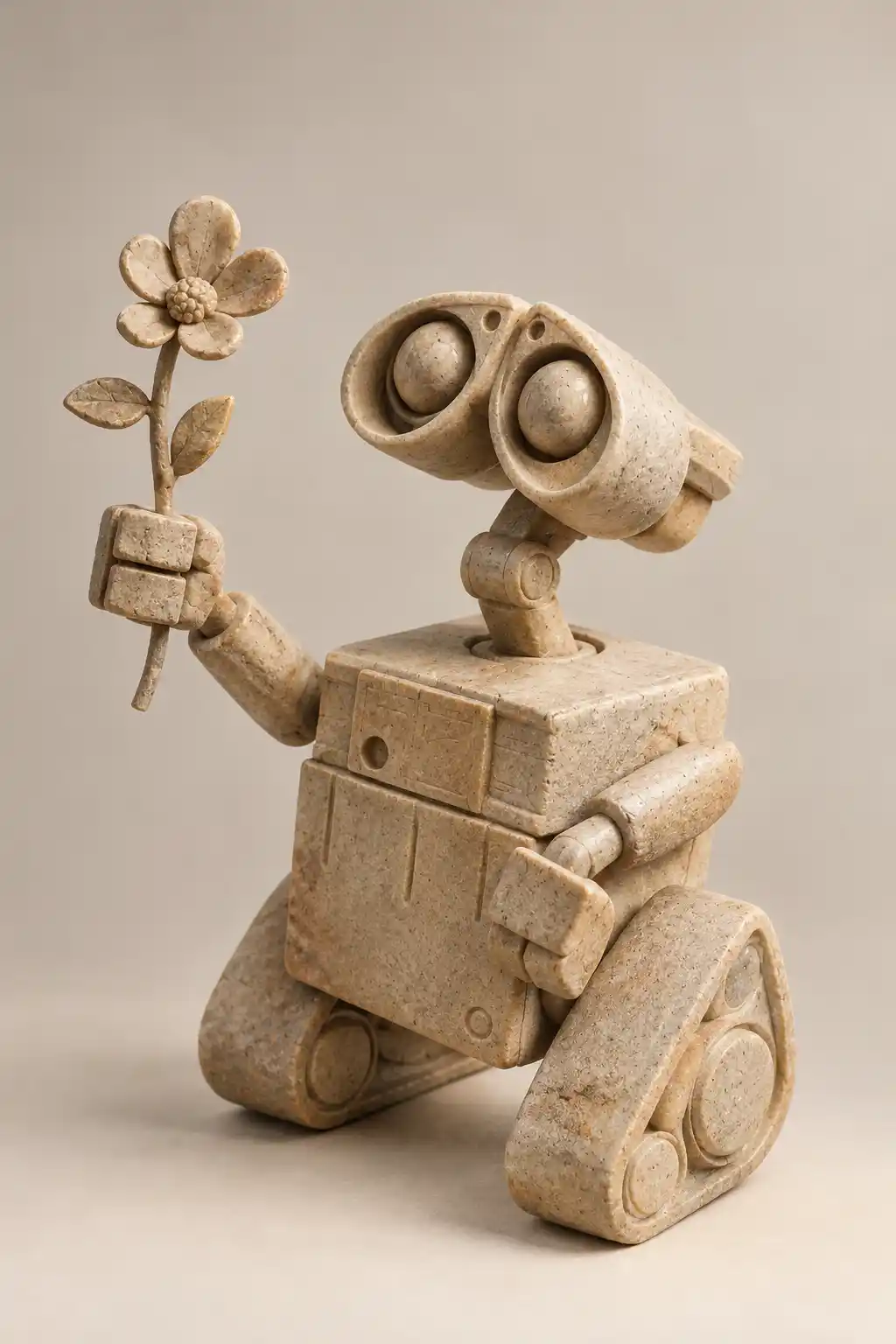
Rustic Stone
Natural sandstone textures, warm earthy tones, and an organic shape.
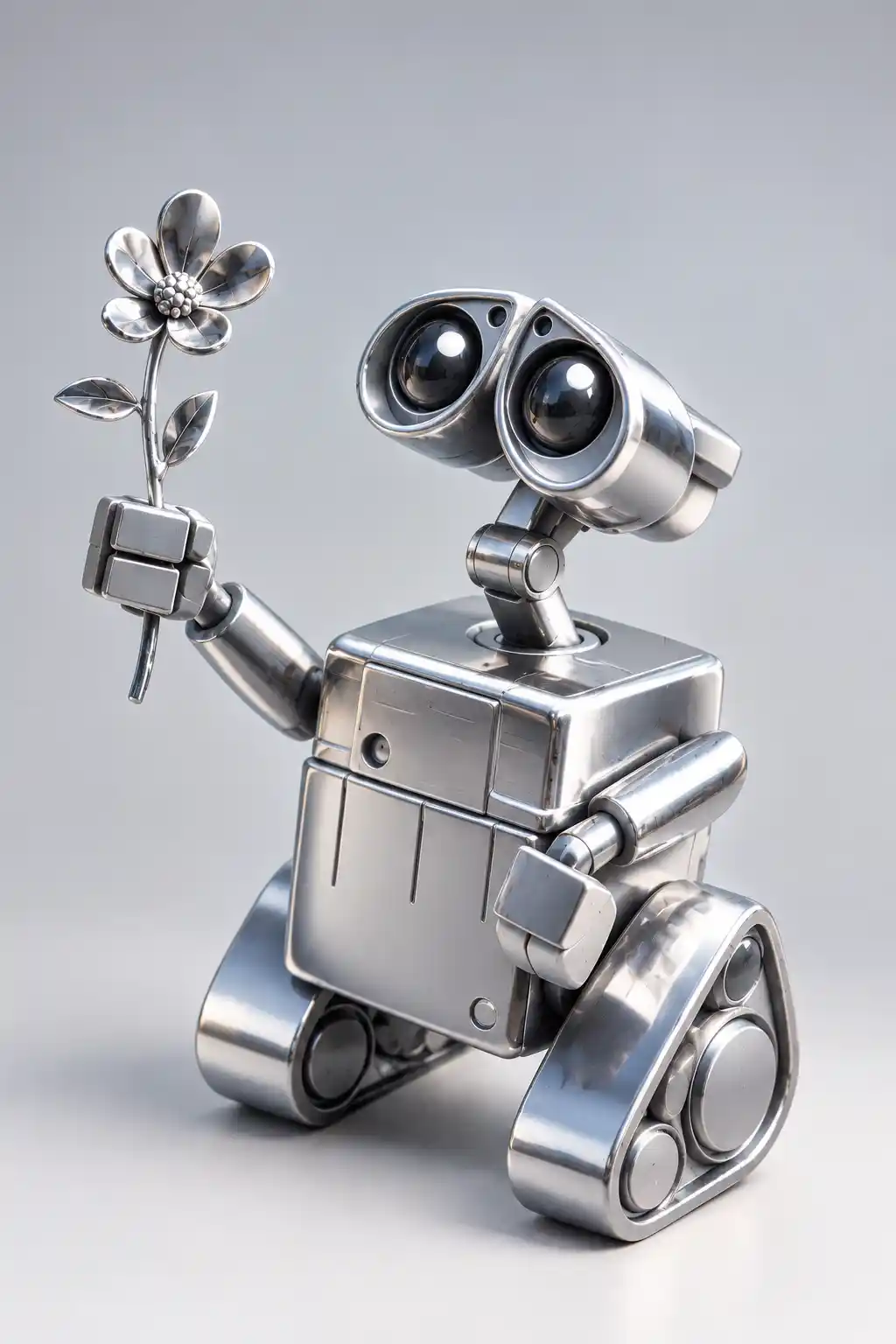
Futuristic Metallic
Reflective chrome, sculptural curves, and a bold, futuristic look.
What Can You Create from a Simple Sketch?
Product Design
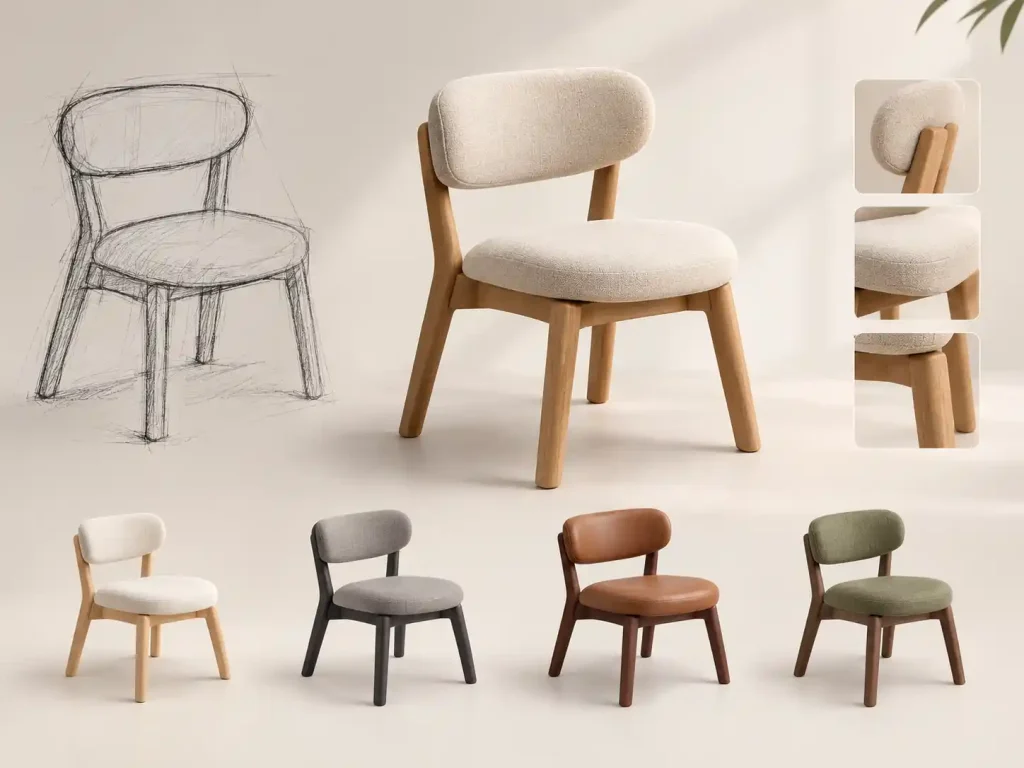
Have an idea for a chair, lamp, accessory, or uniquely shaped coffee mug? Start with a simple sketch, then use prompts to explore different forms, materials, and styles.
This is useful in early product design, when you want to evaluate an idea visually before investing time in detailed modeling.
Your first model doesn’t need to be production-ready. It simply needs to help you decide whether the design is worth developing further.
Product Design
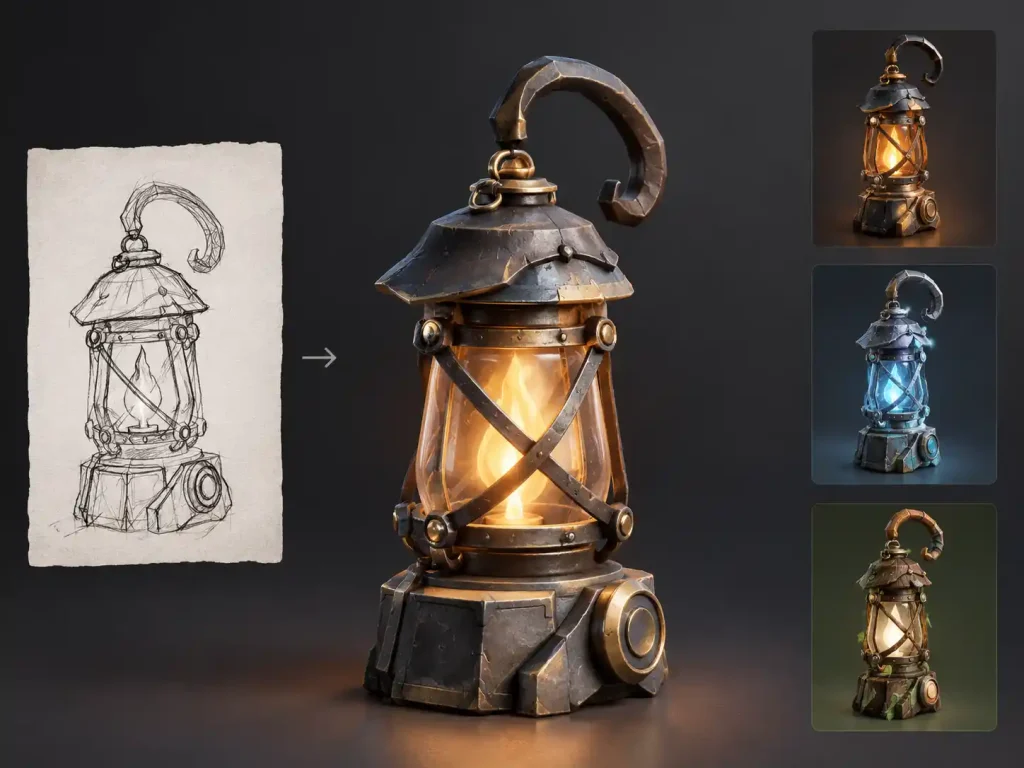
Game developers often need a steady supply of props, environmental objects, and character concepts. Sketch-to-3D tools can help them explore early designs without manually modeling every concept from scratch.
You could sketch a fantasy lantern, a sci-fi storage crate, or an original creature, then use prompts to define its style, materials, and distinctive details.
Generated models may still need optimization, retopology, UV mapping, or other adjustments before they’re ready for a game engine. However, they can serve as useful starting points for exploring concepts and developing game assets.
Creative Projects
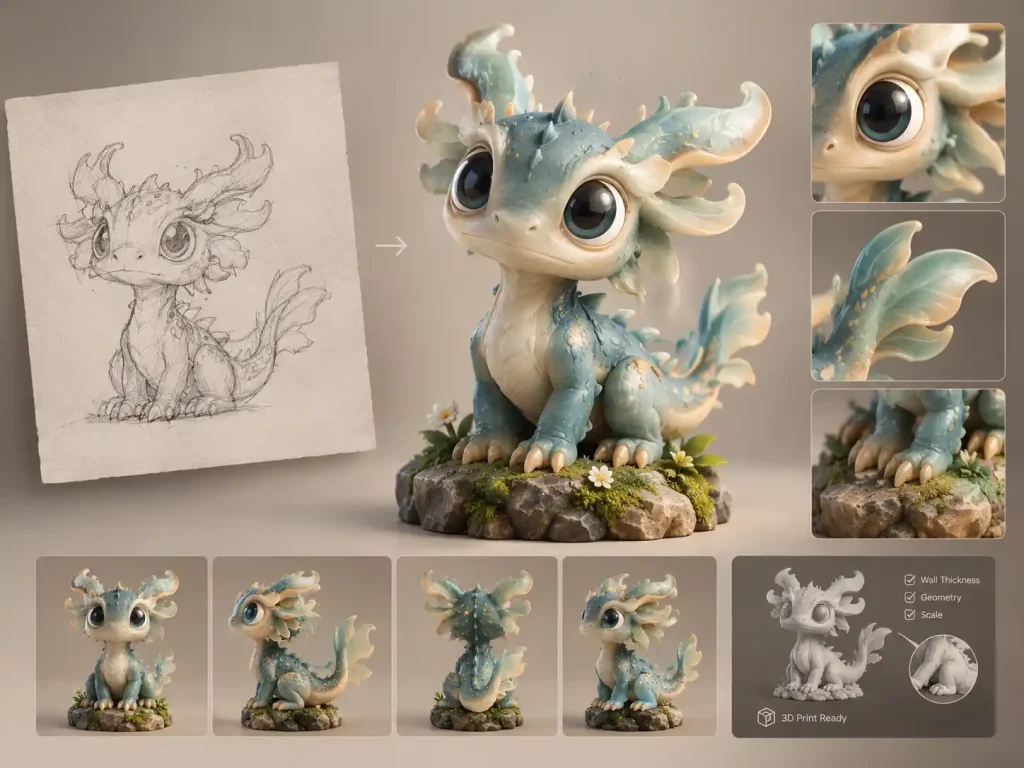
Want to design a collectible figurine, a custom toy, or an original fantasy creature? Use your sketch as a starting point and experiment with unusual silhouettes, exaggerated proportions, or material combinations that are difficult to visualize in a flat drawing.
If you plan to 3D print the result, remember that a model that looks great on screen isn’t automatically print-ready. Check wall thickness, geometry, scale, and other printing requirements before printing.
Practical Tips for Better Sketch-to-3D Results
Change One Thing at a Time
Fix the Right Problem: Sketch or Prompt?
Match the Model Faces Setting to Your Goal
Generate More Than Once
Conclusion
You don’t need to become a master illustrator before you can start creating in 3D. Sometimes, a rough sketch is all you need to get the process moving.
Sketch to 3D is a useful starting point when your idea is still taking shape. Add smart prompt recognition, a few well-chosen instructions, and some experimentation, and that quick drawing can become the foundation for several different designs.
And if your first result looks a little strange? That’s part of the process. Some of the best ideas show up after the first attempt, not before it.
Ready to see what your sketch can become? Try Sketch to 3D model AI for free — upload a simple drawing and give your next idea a third dimension.