Create High-Quality 3D Models with Meshy 3D

Turn images, text prompts, or multiple views into detailed 3D models with Meshy AI. Explore a versatile 3D generation model, compare its strengths with other options, and choose the right workflow for your next project.

meshy 3d cover
Gallery

Discover What's Possible with Meshy Models







Explore a range of AI-generated 3D creations, from stylized characters and intricate props to realistic objects. See how Meshy 3D transforms different concepts into detailed 3D assets.

High-Quality 3D Details

Generate detailed 3D models with rich visuals and well-defined shapes.

Flexible Input Options

Create 3D models from images, text prompts, or multiple views.

Two Model Types

Choose Standard for detailed meshes or Smart Topology for clean geometry with separate, editable parts.

Explore Three Ways to Create 3D Models

Start with a single image, a text prompt, or multiple views of an object. Choose the Meshy 3D workflow that fits your idea and turn your references into detailed 3D assets.

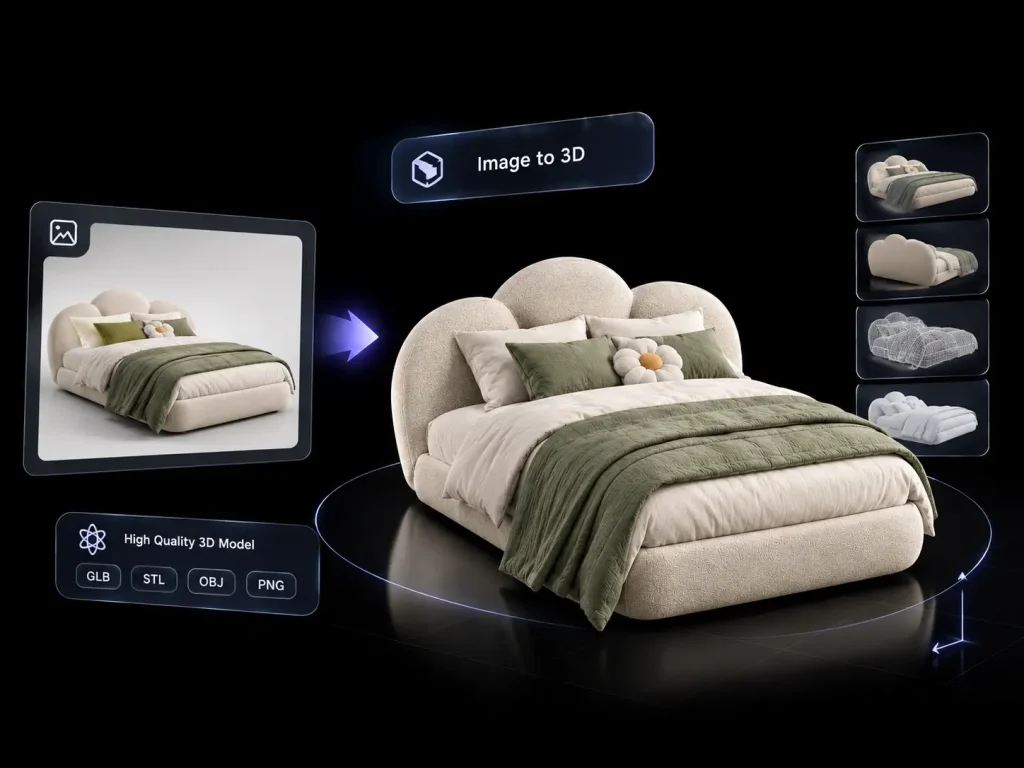
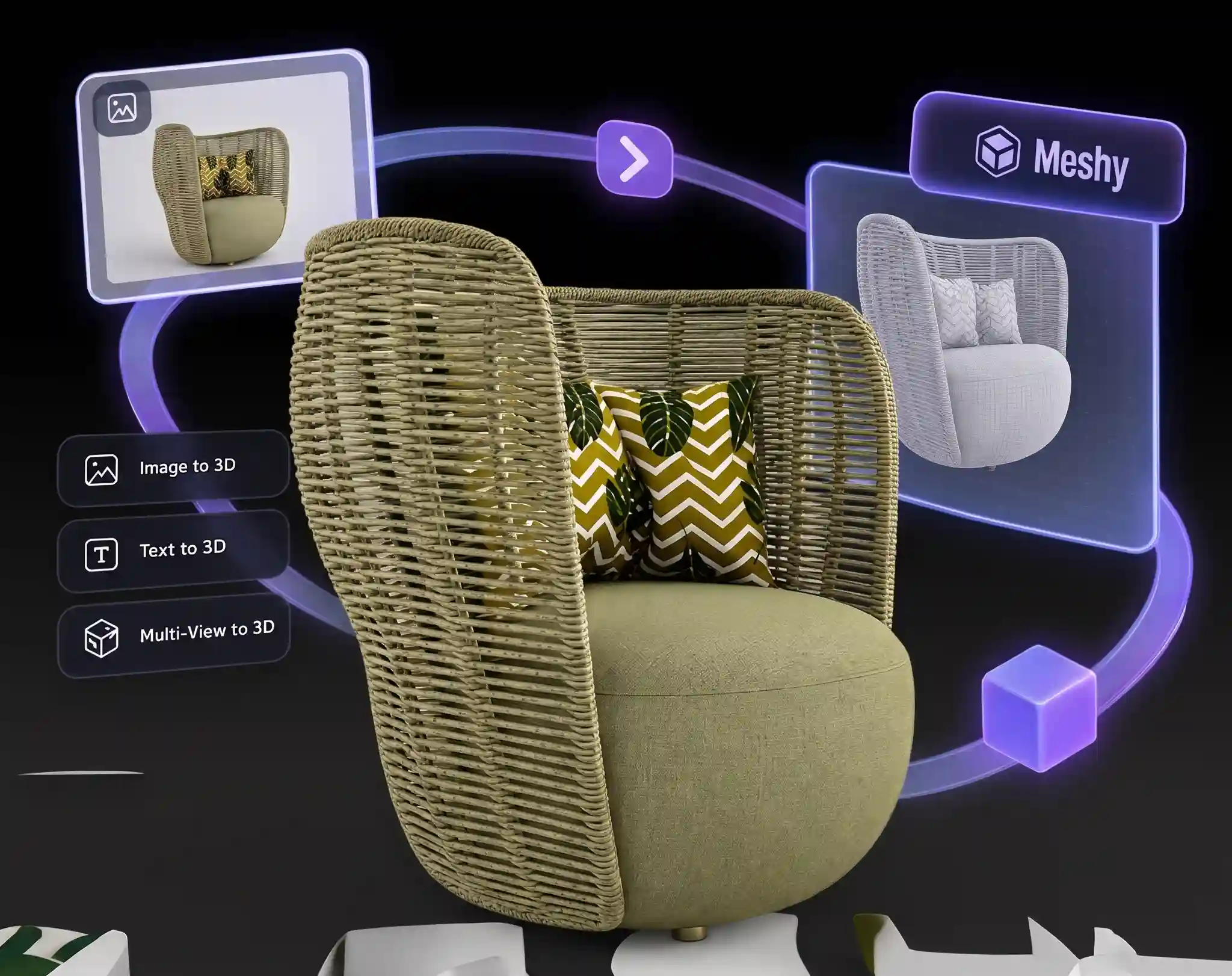
Have a reference image ready? Meshy AI image to 3D transforms 2D visuals into 3D models, capturing the subject's overall shape, defining features, and visual style. It's a convenient starting point for turning a concept, product photo, or character design into a 3D asset.

meshy image to 3d

Have a reference image ready? Meshy AI transforms 2D visuals into 3D models, capturing the subject's overall shape, defining features, and visual style. It's a convenient starting point for turning a concept, product photo, or character design into a 3D asset.

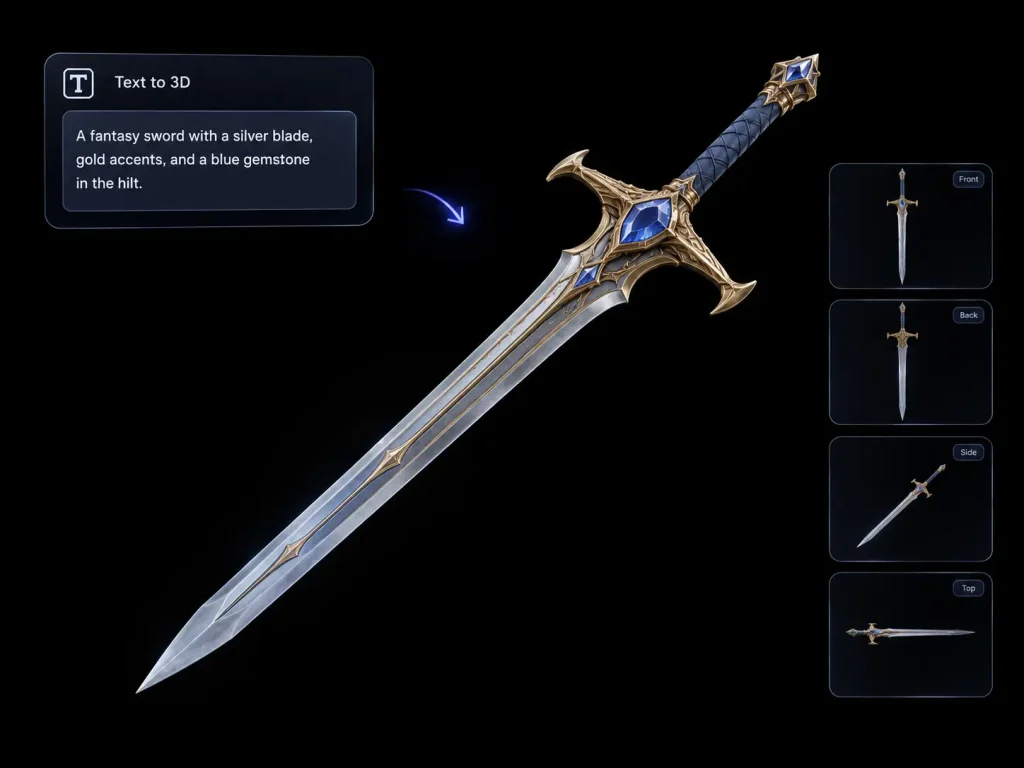
meshy text to 3d model

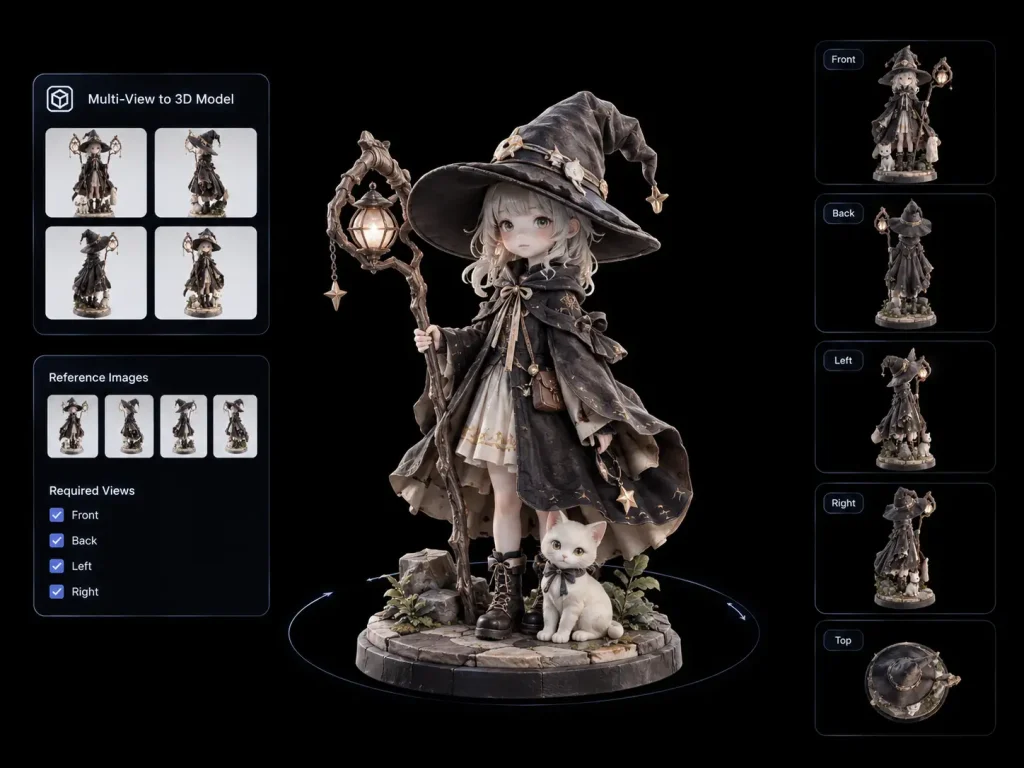
A single image can't show every side of an object. With multi-view generation, you can provide several reference images of the same subject to give Meshy AI more information about its shape, proportions, and hidden surfaces. It's especially useful when you need to communicate a design from multiple angles.

meshy multi-view to 3d model
how to use meshy ai

How to Create a 3D Model with Meshy AI

Choose Meshy model from the available models, provide your input, and generate a 3D asset in a few simple steps.

Open the model selector on Image to 3D AI and choose Meshy 3D to get started.

Select image-to-3D, text-to-3D, or multi-view-to-3D based on your project and available references.

Upload a reference image, provide multiple views of the same object, or describe your idea in text. Adjust the available settings to suit your needs.

Start generation, review the result, and download your model in a supported format for your creative workflow.

Creator Reviews

See What Creators Can Make with Meshy 3D

Discover how AI-powered 3D generation fits into creative workflows, from developing game assets to exploring product concepts and turning ideas into 3D models.

Meshy produces detailed models that make a great starting point for my creative projects. I especially like being able to explore shapes and surface details without building everything from scratch.


avatar
Ethan Brooks 3D Artist

Text-to-3D is useful when I'm brainstorming new characters and game props. I can describe an idea, generate a model, and quickly see whether the concept works visually.

avatar
Olivia Chen Indie Game Developer

Being able to provide multiple reference angles is helpful when a product has details that aren't visible from the front. It gives me a more useful starting point for 3D exploration.

avatar
Noah Williams Product Designer

I like having different ways to start a 3D project, whether I have a reference image or just an idea in mind. It makes experimenting with different concepts feel much more accessible.

avatar
Mia Patel Digital Artist
Help Center

Frequently Asked Questions About Meshy 3D

Learn how Meshy AI works, compare it with other AI 3D models, and explore supported downloads, 3D printing options, and creative use cases.

Meshy 3D AI is an AI-powered 3D model generation tool that transforms text prompts and images into 3D assets. It supports different workflows, including image-to-3D, text-to-3D, and multi-view-to-3D, making it useful for a variety of creative projects.

Different AI 3D models offer different strengths in detail, geometry, topology, and input flexibility. Meshy models supports image, text, and multi-view generation, along with Standard and Smart Topology model types. On Image to 3D AI, you can also explore alternatives such as Tripo and Hunyuan to compare results and choose the model that best fits your project.

Yes, you can download generated models in the formats supported by the selected workflow. You can then import compatible files into 3D software for further editing, texturing, or refinement. The available formats and editing requirements may vary depending on your generation settings and intended use.

Yes, generated models may be used for 3D printing after checking and preparing the mesh. Make sure the geometry is watertight, wall thickness is sufficient, and the model meets your slicer's requirements. If your model is available as a GLB file, you can use our 3D Model File Converter to convert it to STL for compatible printing workflows. You may need additional mesh repairs before printing.

No prior 3D modeling experience is required to get started. You can generate a model from an image, describe your idea in text, or provide multiple reference views. If you plan to use the result in a professional workflow or for 3D printing, some additional knowledge of mesh editing and optimization can be helpful.

You can create a wide range of 3D assets, including characters, creatures, game props, product concepts, collectibles, and decorative objects. Start with a reference image, a text prompt, or multiple views, depending on your project. The final result will depend on the input quality, model settings, and complexity of the subject.

Ready to Create Something in 3D?

Turn images, text prompts, or multiple views into detailed 3D models with Meshy AI. Start with your idea and explore what you can create.