Automatic 3D Model UV Mapping Online
Unwrap 3D models into organized 2D UV layouts with smart UV unwrapping. Preview your model and UV map side by side, inspect mesh details, and download your results for texturing and further 3D workflows.
DEMO
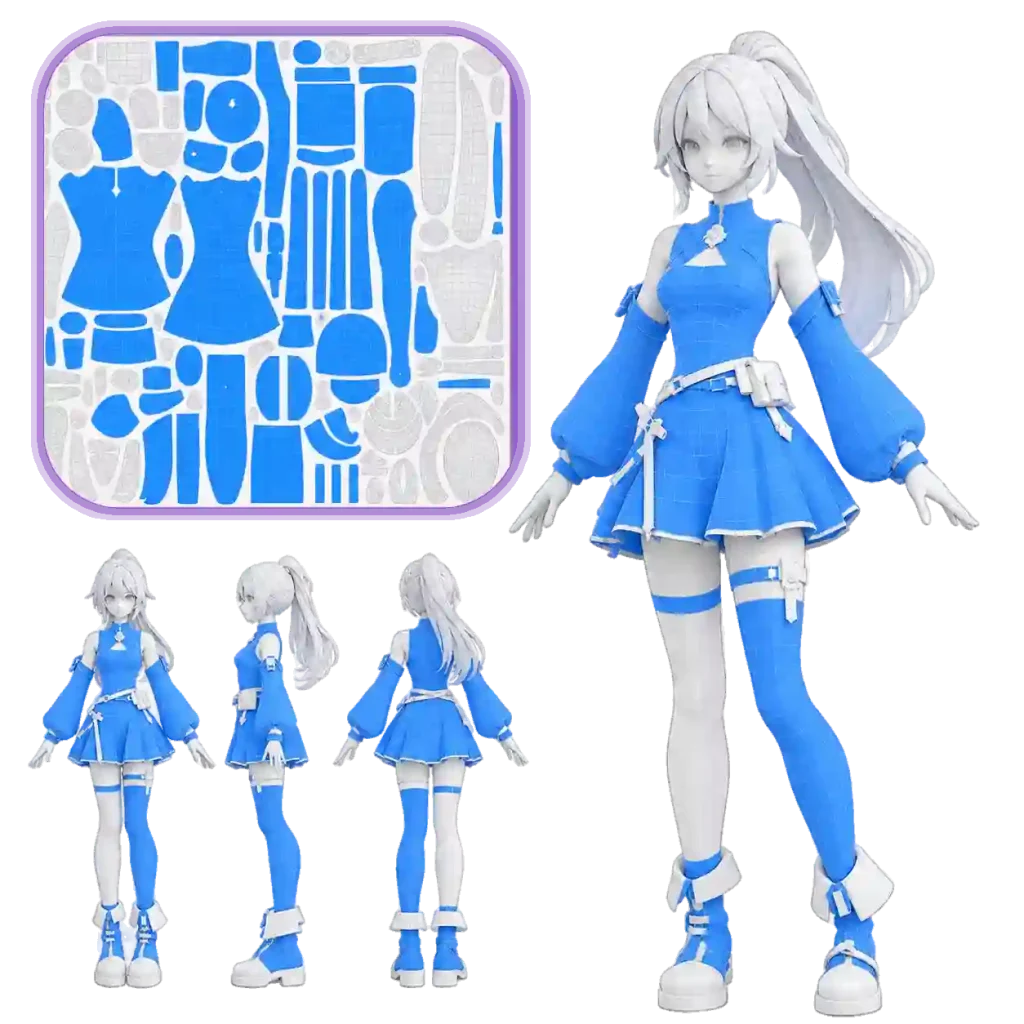
Preview Smart UV Mapping for Your 3D Assets
Explore the connection between your 3D mesh and its 2D UV layout. Inspect UV islands, check mesh topology, and preview your model in one workspace before downloading the results.
Gallery
Explore UV Layouts Across Different 3D Models
See how different shapes and mesh structures translate into 2D UV layouts. From character assets to hard-surface objects, examine the UV islands that prepare your models for texturing workflows.
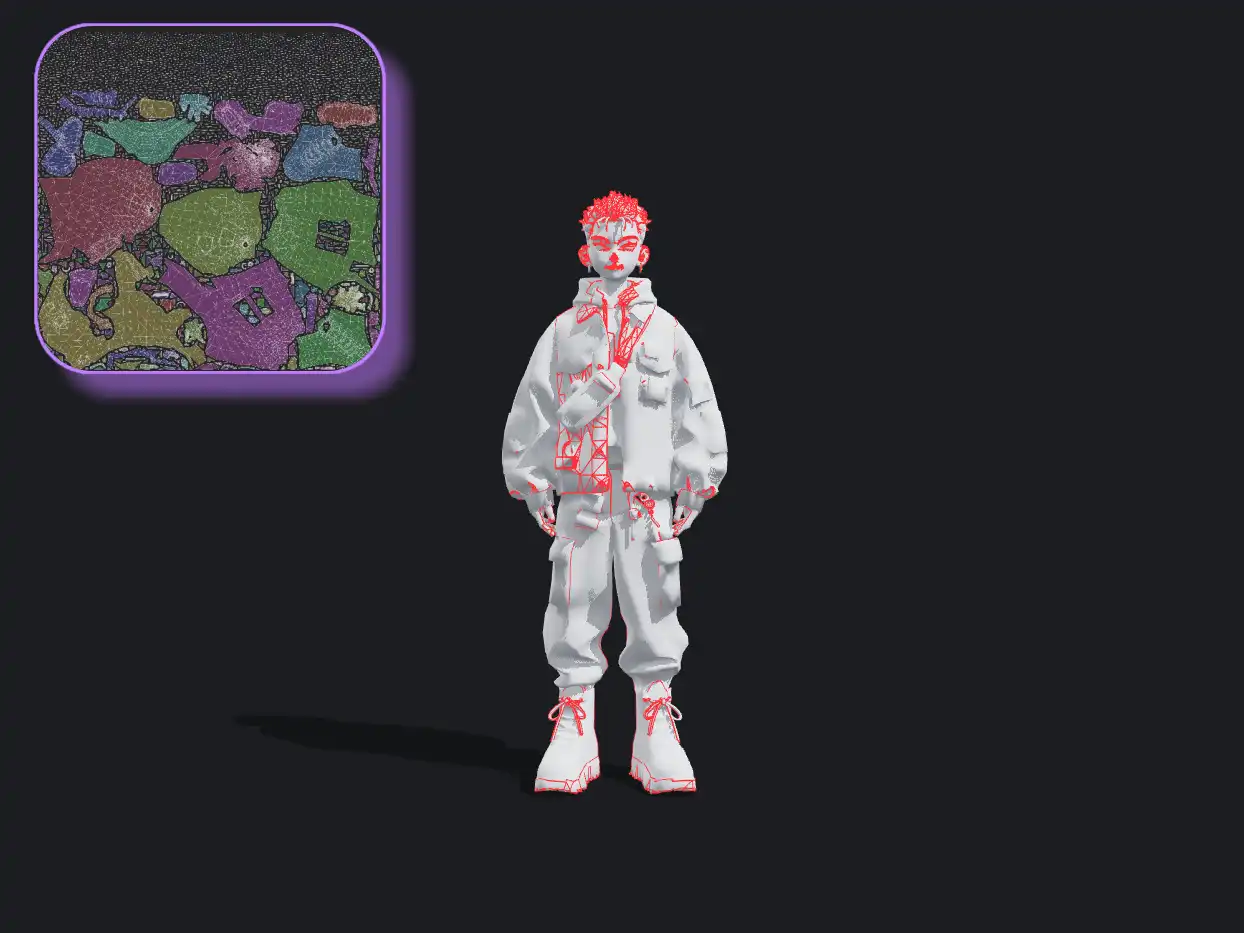
Character Models
Explore UV layouts for characters and organic shapes, where curved surfaces and intricate details require careful mapping.
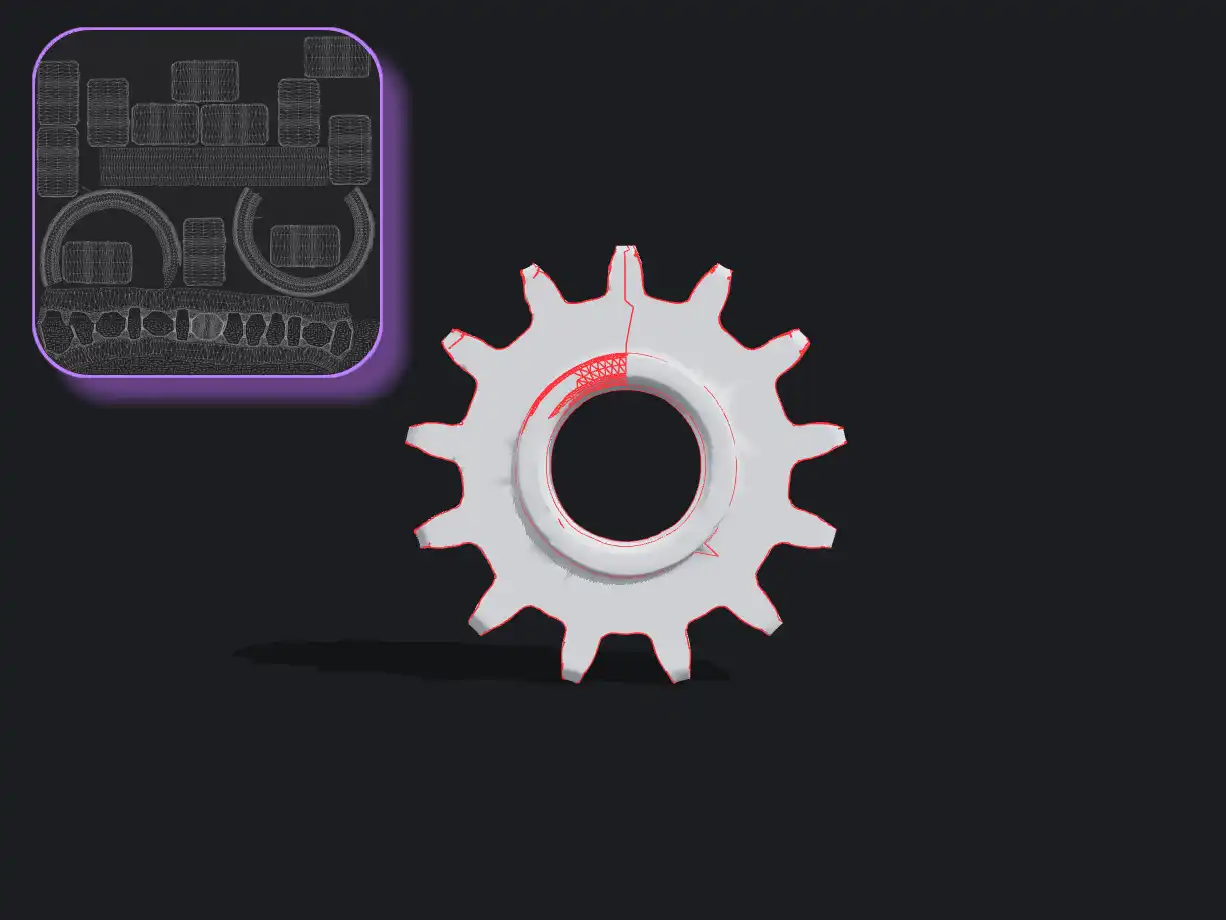
Hard-Surface Models
See how mechanical parts, product designs, and angular surfaces translate into 2D UV layouts for further 3D work.
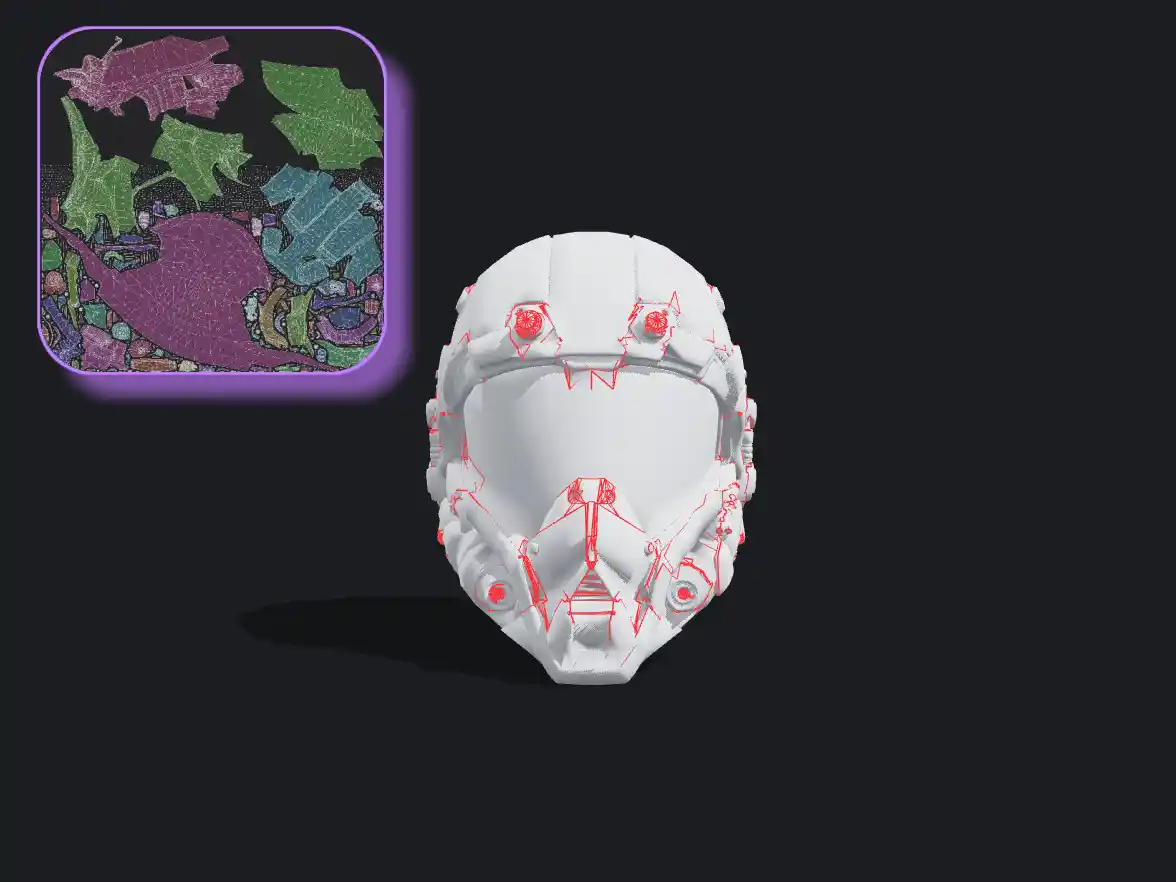
Props & Sculptures
Discover how decorative objects and detailed props are unfolded into UV islands ready for inspection and texturing workflows.
Features
Smarter UV Unwrapping for More Efficient Texture Workflows
Simplify UV mapping with automated unwrapping, interactive mesh inspection, and instant feedback on UV space utilization. Fine-tune your layout workflow to make better use of available texture space.
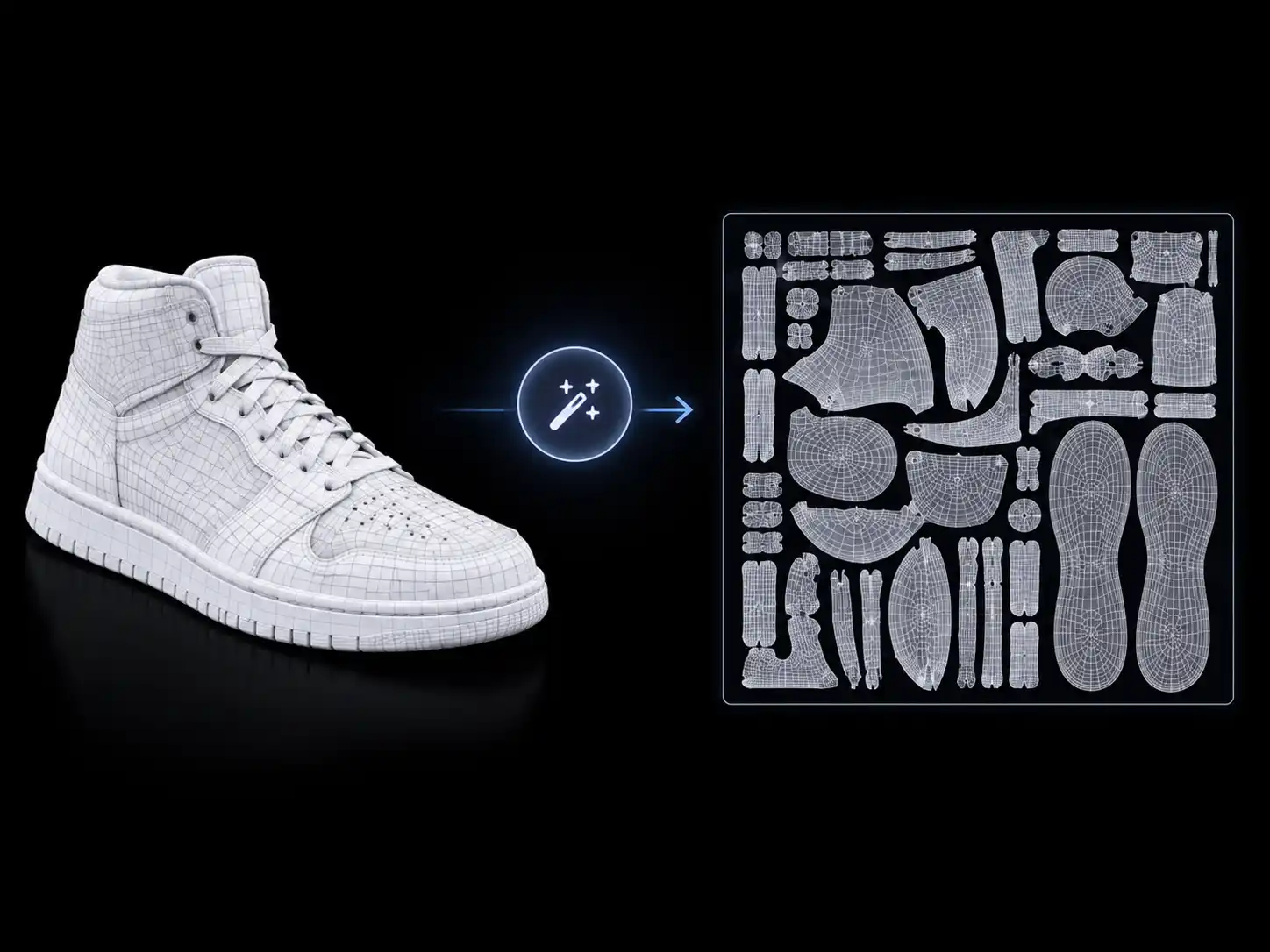
One-Click Automatic UV Unwrapping
Generate a UV layout automatically without manually unfolding each part of your model. The streamlined process helps you get started quickly, even when working with models that contain many separate surfaces. Spend less time on repetitive UV setup and more time reviewing the layout for your project.
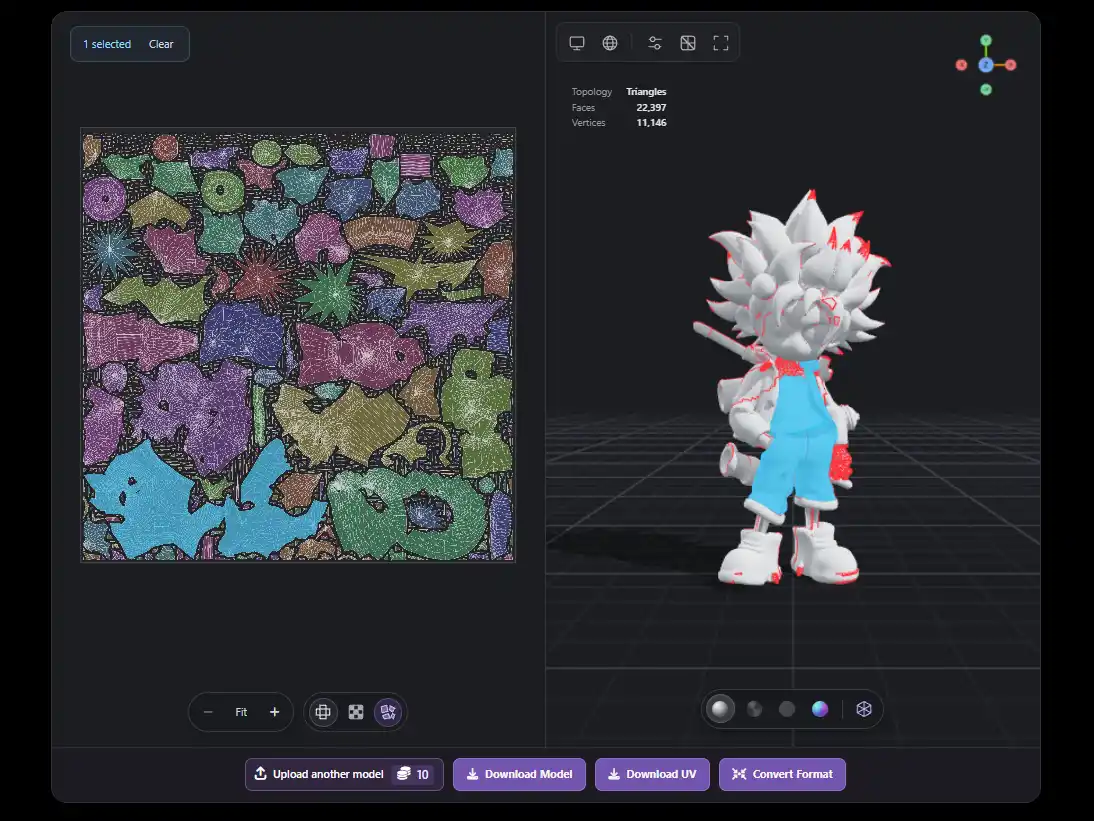
Interactive UV Island Highlighting
Select a UV island to highlight its corresponding faces on the 3D model, or select model faces to locate the matching UV island. This two-way visual connection makes it easier to identify specific surfaces and understand how the model is represented in 2D space. Navigate complex UV layouts more confidently without guessing which part of the model each island belongs to.
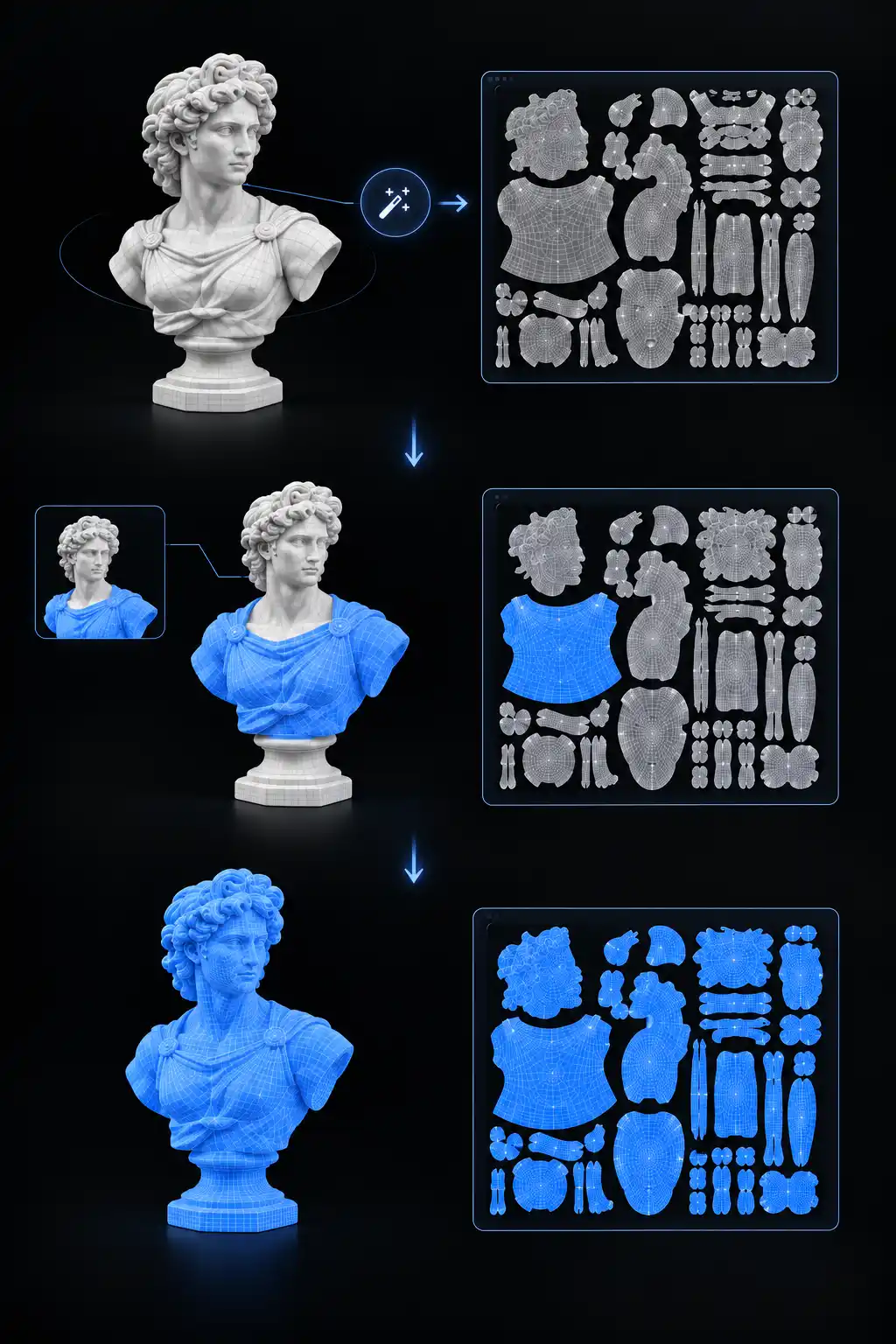
How to Unwrap and Optimize Your 3D Model's UVs
Generate a UV layout, inspect how UV islands map to your 3D model, and refine the result with a simple interactive workflow. Review the layout before downloading your model and UV data.
Help Center
Frequently Asked Questions About UV Unwrapping
Find answers about UV layouts, texture handling, exporting, and getting the most out of your workflow.
Smart UV unwrapping automates the process of creating UV layouts from 3D geometry. Instead of manually placing every seam and UV island, an automated tool generates a layout to help prepare the model for texturing.
Our UV unwrapping tool focuses on generating UV layouts and does not currently preserve the original textures of uploaded models. You may need to reassign or rebake textures after unwrapping.
You can upload 3D models in GLB, glTF, FBX, OBJ, and STL formats, with a maximum mesh size of 30,000 faces per model. Make sure your model meets the face-count limit and uses a supported format before uploading.
You can use exported models in compatible 3D applications. However, because the original textures are not currently preserved, you may need to reassign materials or rebake textures before using the model in your final project.
You can get started using the credits available on our platform. The number of operations and available features may depend on your current plan.
Yes. You can use the Download UV option to download the UV layout separately and Download Model to export the processed 3D model.
Ready to Unwrap Your 3D Model?
Create UV layouts with smart UV unwrapping, inspect your model's UV islands, and prepare your assets for the next stage of your 3D workflow. Upload your model and get started in just a few clicks.