How to Make 3D Model from Image: A Comprehensive Guide
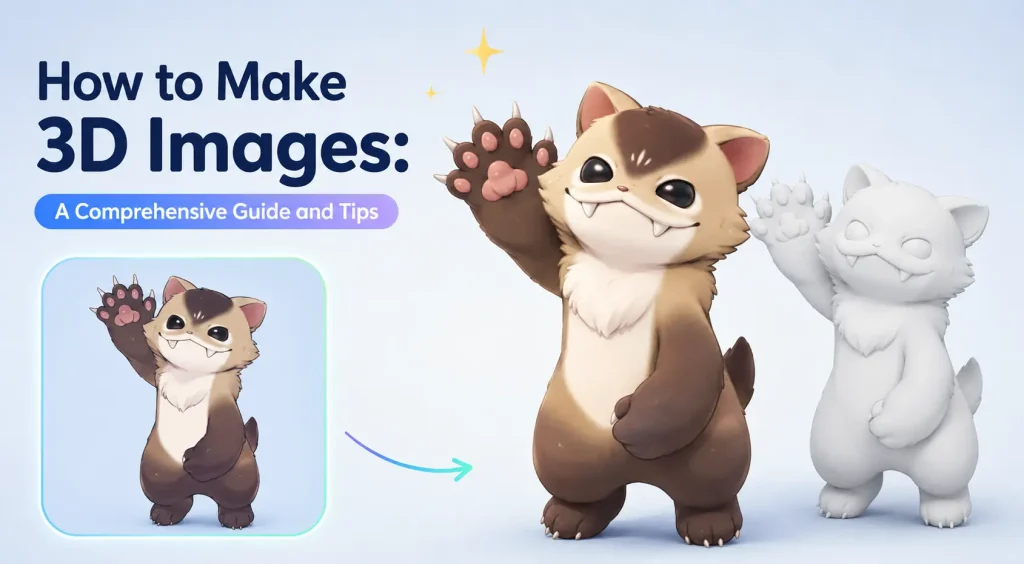
The landscape of digital creation is shifting. Traditional 3D modeling, once a specialized skill requiring years of mastery, is being democratized by the rise of the AI 3d model generator. Whether you are a game developer looking for rapid prototyping or a designer exploring new dimensions, AI-driven tools have lowered the barrier to entry significantly.
Today’s tools are no longer limited to simple shapes; they support a sophisticated workflow that includes ai-generated 3d models from image inputs. In this guide, we will explore how to transform your creative concepts into production-ready assets using a professional-grade Image to 3D tool.
The Science Behind AI 3D Model Generation: How It Works
How Text-to-3D Model Works
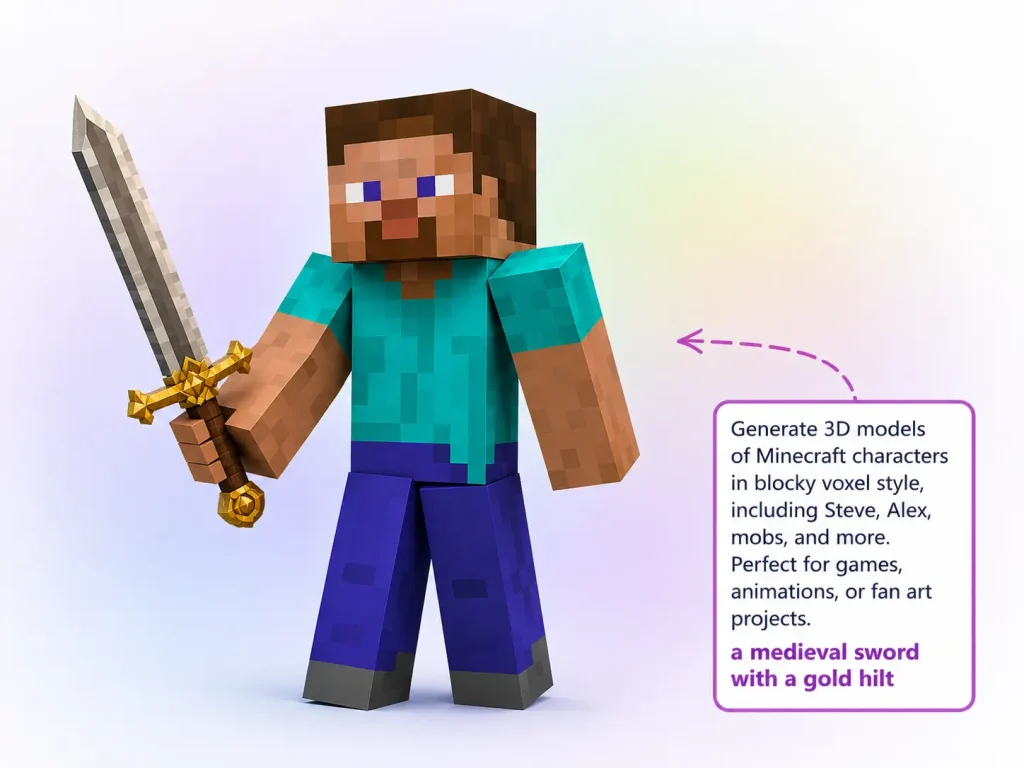
How Image-to-3D Model Works
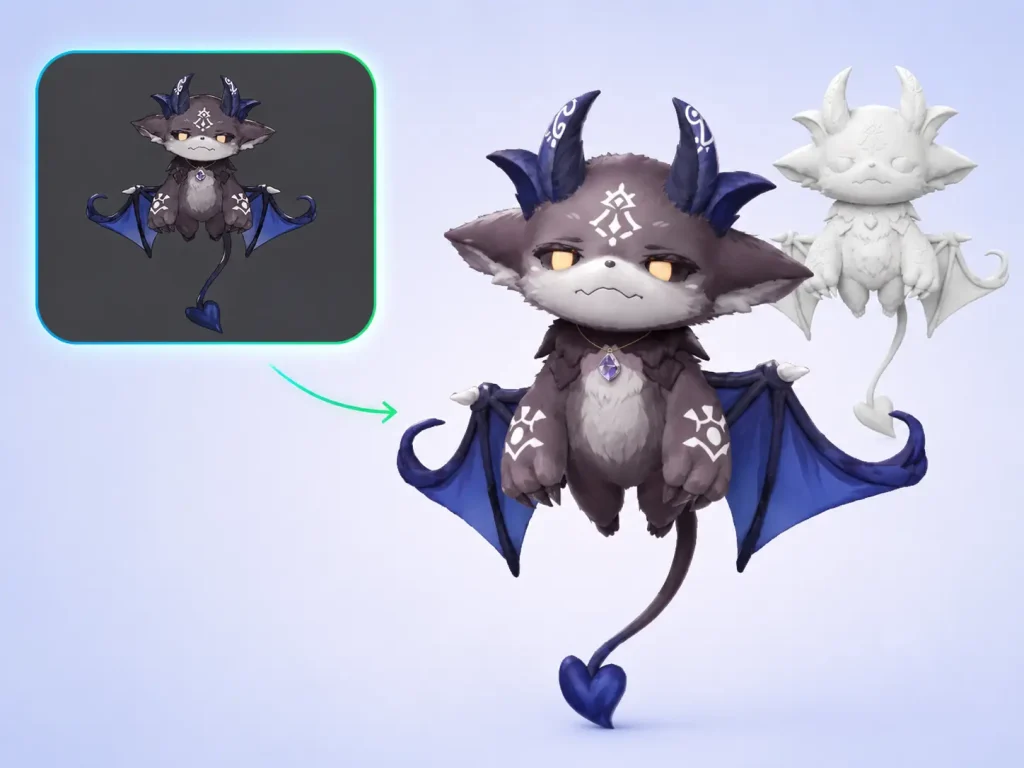
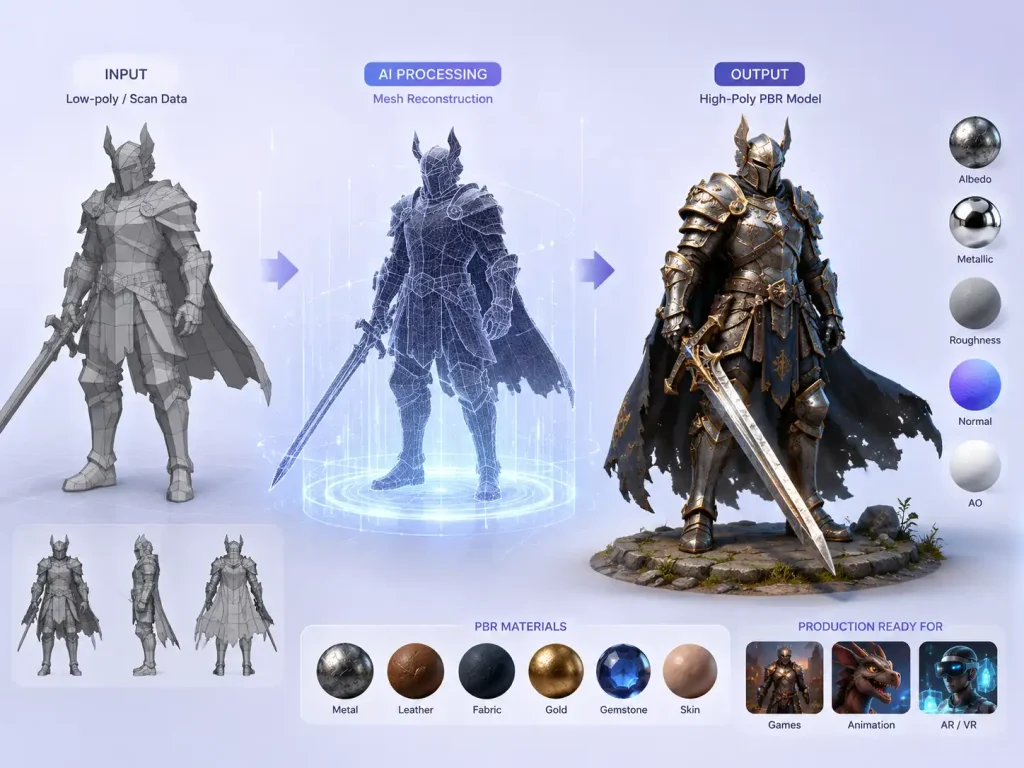
High-Precision Mesh Reconstruction & PBR Material Generation
Standardized AI 3D Model Generation Workflow: Three-Step Practical Guide
Before you begin, you need to access a reliable Image to 3D Model platform. To follow this guide, head over to our Image to 3D AI tool.
Getting Started:
1. Navigate to our official tool —— Image to 3D AI
2. Select the Image-to-3D mode to begin your project.
3. Take advantage of the Image to 3D generator free trials to start your first project instantly—no signup is required for your generations!
To maximize the efficiency of an AI 3d model generator, following a standardized workflow is key to consistency.
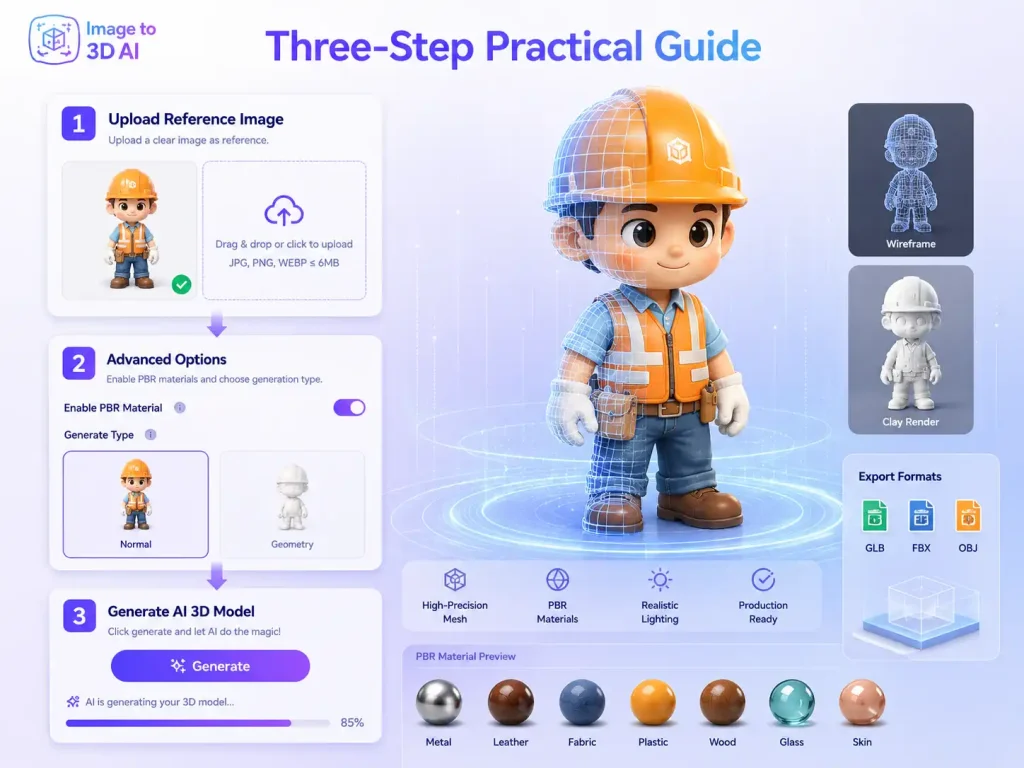
Step 1: Source Image Pre-processing
If you are using an AI 3d model generator free tier, the quality of your “seed” is paramount.
- Text Prompts: Use descriptive, structural keywords rather than vague adjectives.
- Image Specs: Ensure your images are in high-resolution PNG, JPG or WEBP formats.
Step 2: Configure Advanced Generation Options
Don’t just hit “Generate.” Look for these two critical settings:
- Generate Type: Choose appropriate Generate Type (e.g., Normal, Geometry).
- Enable PBR Material: Always toggle this on to generate the Albedo, Roughness, and Normal maps needed for professional rendering.
Step 3: One-Click Generation & Real-Time Preview
- Generate the model in one click and preview it in real time.
- Use the visual panel to rotate, zoom, and inspect mesh integrity.
- Export in common 3D model formats like GLB format for downstream use.
Showcase: Examples of Image to 3D Model Generations
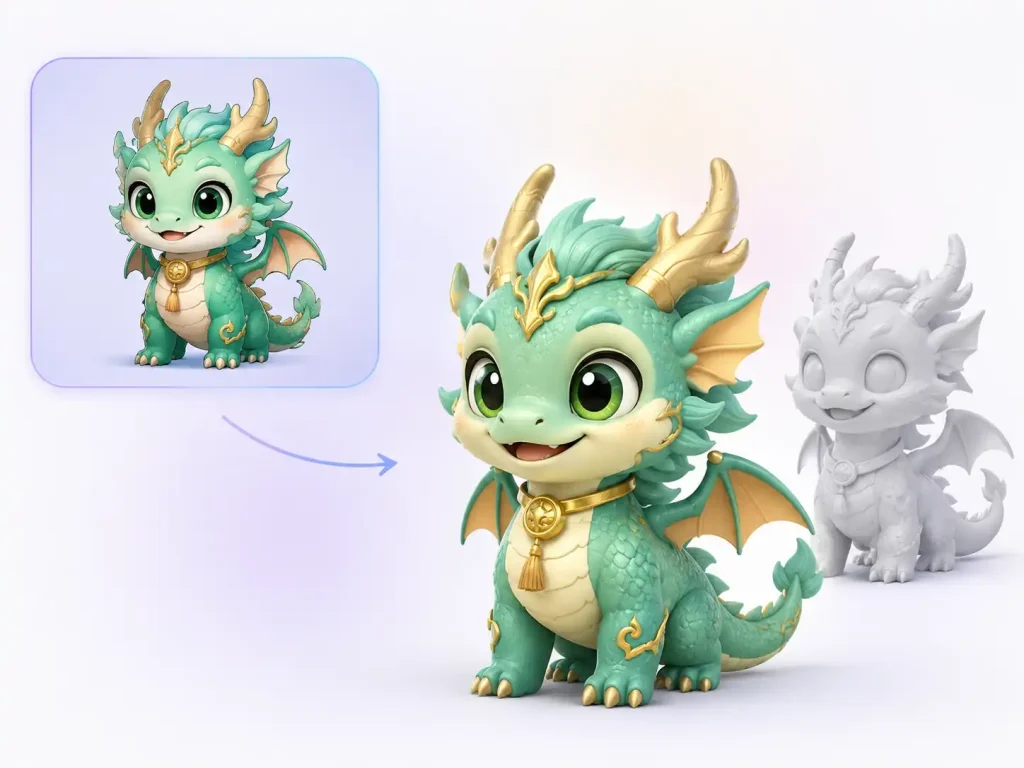
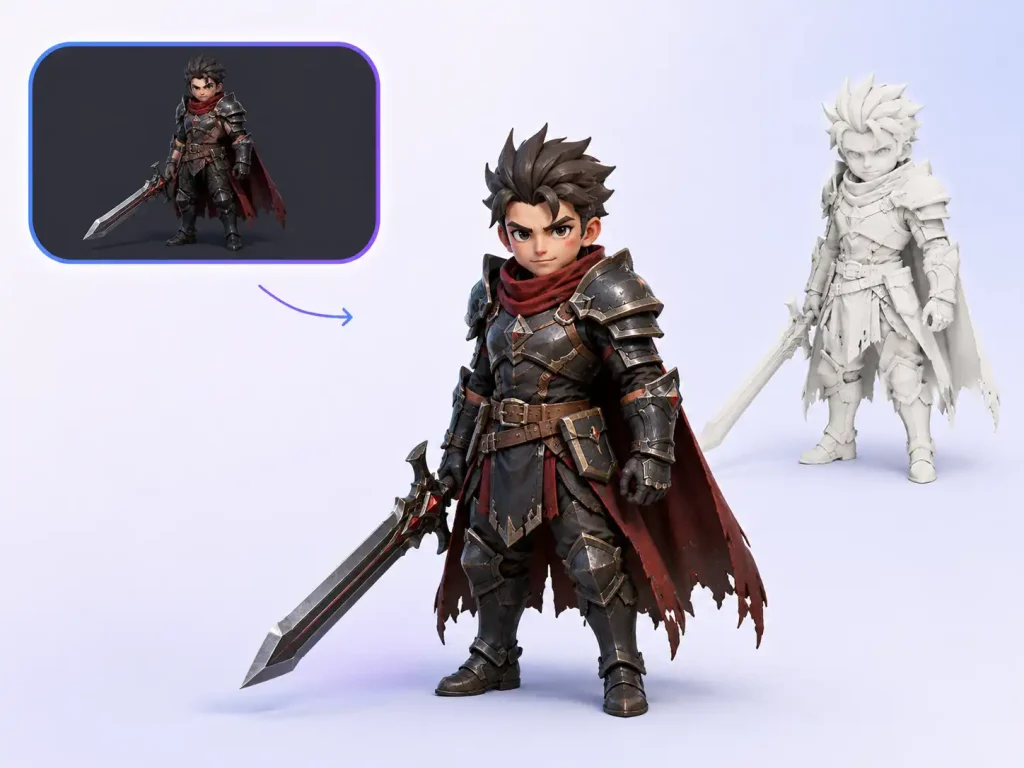
● Character & Mascot Design
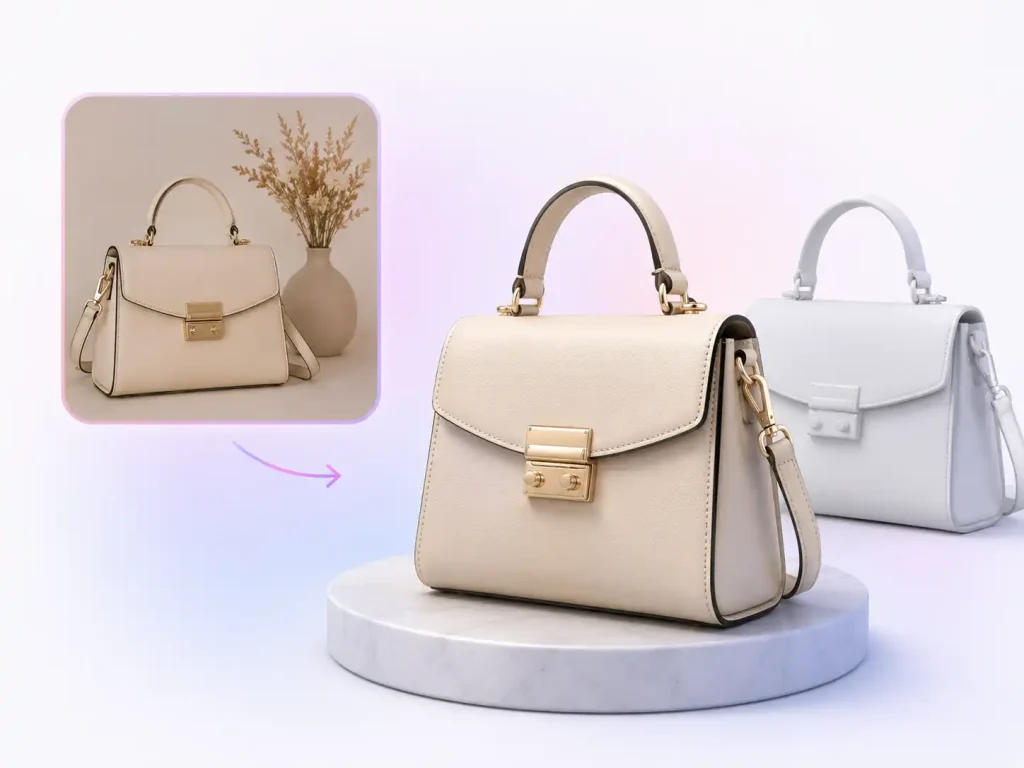
● E-commerce & Product Visualization
● Game Development & Asset Prototyping
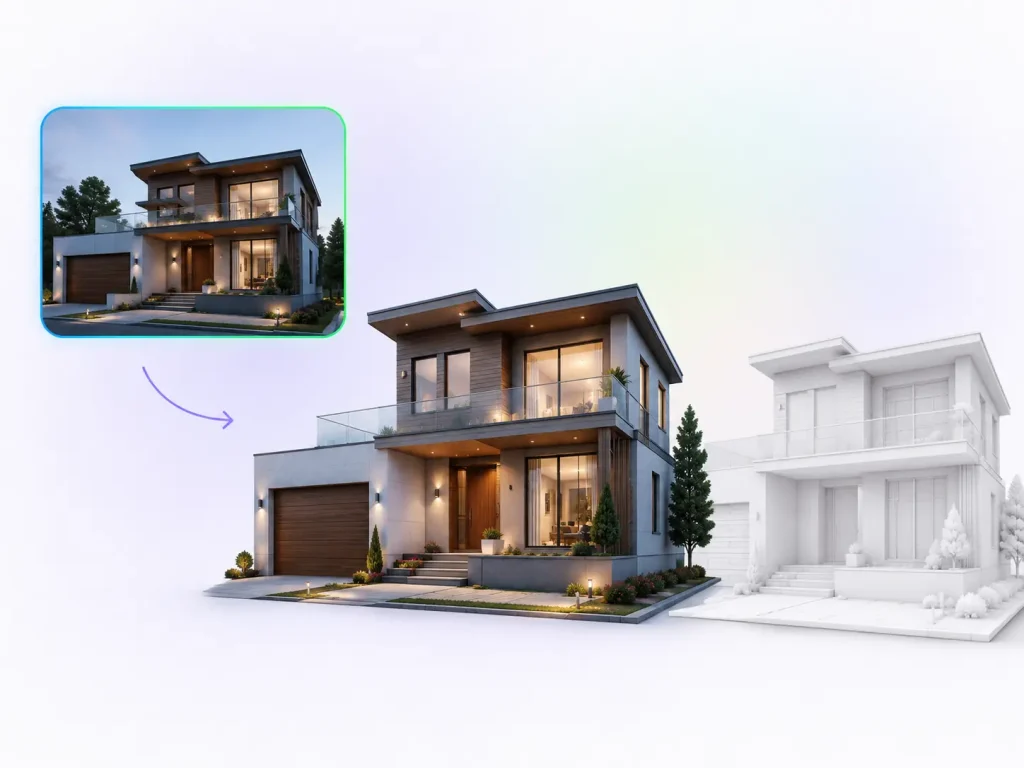
● Architectural Visualization & Interior Design
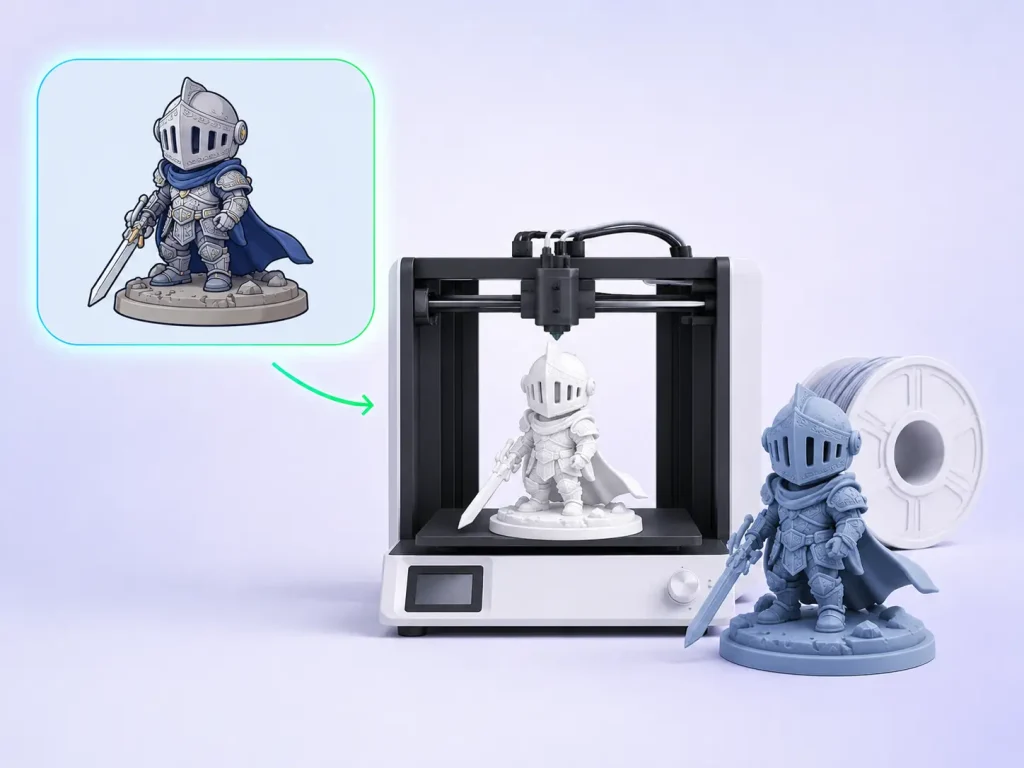
● 3D Printing & Physical Prototyping
Advanced Tips for Enhancing 3D Model Usability
Image Preparation Tips
- 🤍Clean Backgrounds: Use solid colors or transparent backgrounds to prevent the AI from confusing the object with its environment.
- 🌄Even Lighting: Avoid harsh shadows or “baked-in” lighting, which can ruin the PBR texture generation.
- 1️⃣Clear View: Ensure no visual obstructions are covering the subject.
- 🌓Frame Occupancy: Ensure the object occupies >50% of the frame.
Perspective Strategies for Different Objects
| Object Category | Best Input Angle | Why? |
|---|---|---|
| 👤 Characters | Front View (T-Pose) | Ensures symmetrical limb generation. |
| 🏠 Hard Surface | 3/4 Perspective | Helps the AI understand depth and corners. |
| 🏖️ Environments | Modular Slices | Break large scenes into small, individual blocks for better detail. |
Pro Tool Hacks
- 🤝Combine Text & Image: Use a source image for shape and a text prompt to “force” the AI to add specific details (e.g., “add metallic rust”).
- ⬜The “White Model” Check: Always inspect the Geometry (white model mode) first. If the shape is wrong, no amount of texture can fix the model.
Conclusion
The latest advancements in AI Image to 3D Model technology have successfully bridged the gap between “toy-level” AI and production-ready tools. By offering features like PBR support and Geometry-first previews, these platforms allow designers to bypass weeks of manual modeling. Whether you are searching for an AI 3d model generator free version for hobbyist work or a professional suite for high-end assets, the standardized workflow outlined above will ensure your 3D model from images are of the highest caliber.